> ## Documentation Index
> Fetch the complete documentation index at: https://support.bolt.new/llms.txt
> Use this file to discover all available pages before exploring further.
# Advanced database settings
> Go beyond the basics of using your Bolt database: connect to Supabase instead, restart an unresponsive database, or claim your database into your own Supabase account.
## View Advanced settings
To open the advanced settings for your project's database:
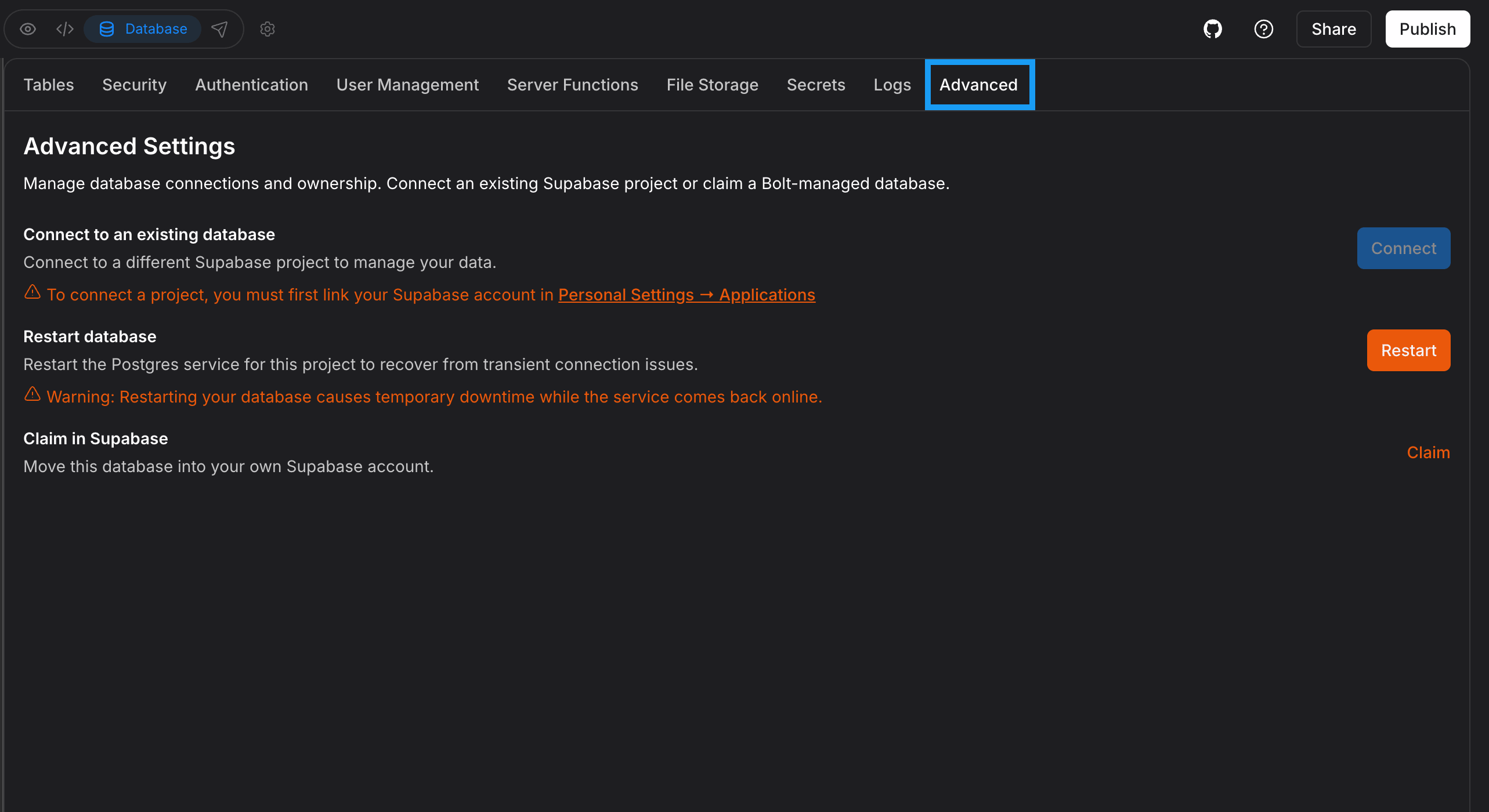 1. Log in to your Bolt project.
2. Click the **database icon** in the top center of your screen.
3. In your database settings, click the **Advanced** tab.
## Who can change advanced settings
Connecting a Supabase database, restarting your database, and claiming a Bolt Database in Supabase are limited to certain roles.
The following [roles](/collaboration/sharing#access-by-role) have access:
* **Individual account**: Project owner only.
* **Team account**: Project owner, Co-owners, and [team Admins](/teams/manage-team#team-member-roles) have access. Editors and Viewers don't.
If you don't have access, the Advanced tab shows the message, "You do not have permission to manage database connections. Contact a project admin for access."
## Connect to a Supabase database
To connect an existing or new Supabase database instead of using a Bolt database, see [Connect a Supabase database](/integrations/supabase#connect-a-supabase-database) for instructions. Connecting a Supabase database requires a Pro or Teams plan.
If your project already has a Bolt database, connecting a Supabase database will replace the connection, which may cause data loss. You may want to [claim](#claim-your-bolt-database-in-supabase) instead.
## Restart your database
If Bolt reports that your database is unresponsive, timing out, or having connection issues, you can restart the database to try to restore the connection.
To restart your database:
1. In your Bolt project, click the **database icon** in the top center of your screen.
2. Click **Advanced**.
3. Click **Restart**.
The database will be temporarily unavailable while it restarts. For most projects, this only takes a few minutes.
If your database is still unresponsive after restarting, [contact support](/troubleshooting/contact-support).
## Claim your Bolt Database in Supabase
Using Bolt Database is a straightforward solution for data storage that works well for most use cases. However, if you need external management tools, SQL editing, or advanced monitoring, you may prefer to use Supabase.
If you've started a Bolt database that you'd like to use with Supabase instead, see [Claiming your Bolt Database in Supabase](/integrations/supabase#claim-your-bolt-database-in-supabase) for instructions. Claiming requires a Pro or Teams plan.
This documentation is built and hosted on [Mintlify](https://mintlify.com), a developer documentation platform.
1. Log in to your Bolt project.
2. Click the **database icon** in the top center of your screen.
3. In your database settings, click the **Advanced** tab.
## Who can change advanced settings
Connecting a Supabase database, restarting your database, and claiming a Bolt Database in Supabase are limited to certain roles.
The following [roles](/collaboration/sharing#access-by-role) have access:
* **Individual account**: Project owner only.
* **Team account**: Project owner, Co-owners, and [team Admins](/teams/manage-team#team-member-roles) have access. Editors and Viewers don't.
If you don't have access, the Advanced tab shows the message, "You do not have permission to manage database connections. Contact a project admin for access."
## Connect to a Supabase database
To connect an existing or new Supabase database instead of using a Bolt database, see [Connect a Supabase database](/integrations/supabase#connect-a-supabase-database) for instructions. Connecting a Supabase database requires a Pro or Teams plan.
If your project already has a Bolt database, connecting a Supabase database will replace the connection, which may cause data loss. You may want to [claim](#claim-your-bolt-database-in-supabase) instead.
## Restart your database
If Bolt reports that your database is unresponsive, timing out, or having connection issues, you can restart the database to try to restore the connection.
To restart your database:
1. In your Bolt project, click the **database icon** in the top center of your screen.
2. Click **Advanced**.
3. Click **Restart**.
The database will be temporarily unavailable while it restarts. For most projects, this only takes a few minutes.
If your database is still unresponsive after restarting, [contact support](/troubleshooting/contact-support).
## Claim your Bolt Database in Supabase
Using Bolt Database is a straightforward solution for data storage that works well for most use cases. However, if you need external management tools, SQL editing, or advanced monitoring, you may prefer to use Supabase.
If you've started a Bolt database that you'd like to use with Supabase instead, see [Claiming your Bolt Database in Supabase](/integrations/supabase#claim-your-bolt-database-in-supabase) for instructions. Claiming requires a Pro or Teams plan.
This documentation is built and hosted on [Mintlify](https://mintlify.com), a developer documentation platform.