> ## Documentation Index
> Fetch the complete documentation index at: https://support.bolt.new/llms.txt
> Use this file to discover all available pages before exploring further.
# Database: Security settings
> View and manage the security settings for your database in a Bolt project.
The Security section of database settings lets you identify vulnerabilities, such as missing RLS policies and insecure permissions.
## View Security settings
To open the security settings for your project's database, follow these steps:
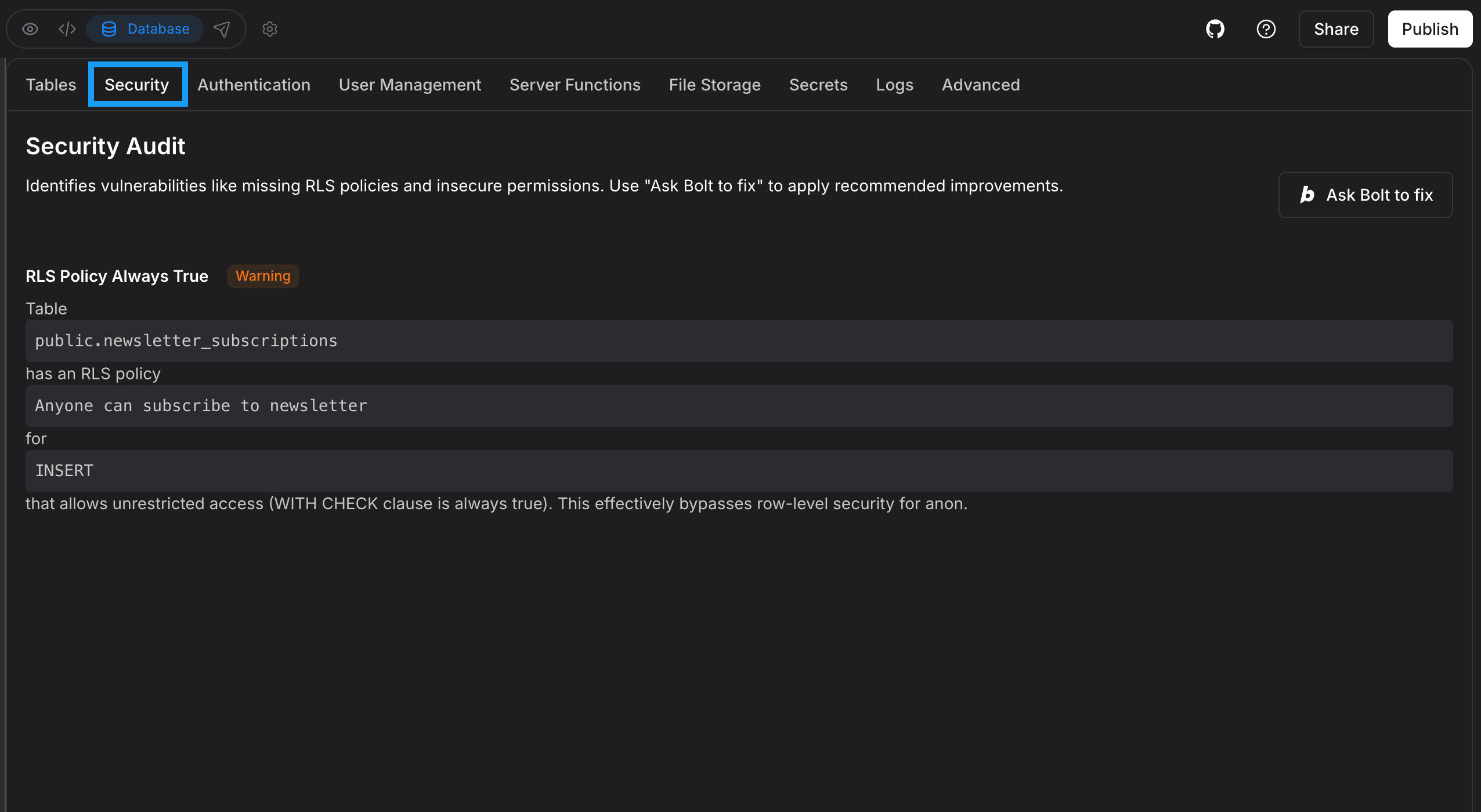 1. Log in to your Bolt project.
2. Click the **database icon** in the top center of your screen.
3. Click **Security**.
## Fix security issues
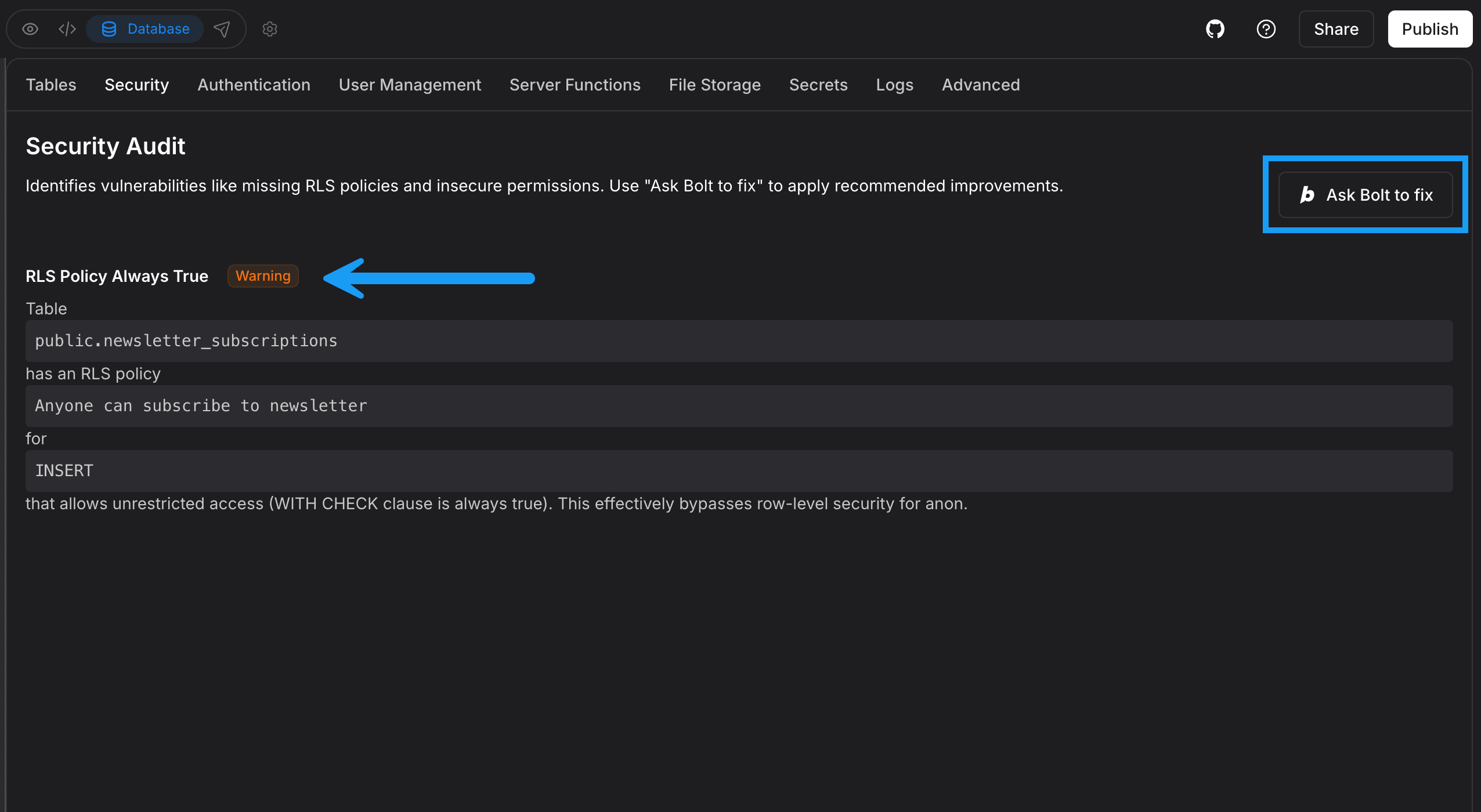
Any security issues Bolt identifies are listed in the Security Audit screen. In the example screenshot below, the RLS Policy Always True warning shows:
1. Log in to your Bolt project.
2. Click the **database icon** in the top center of your screen.
3. Click **Security**.
## Fix security issues
Any security issues Bolt identifies are listed in the Security Audit screen. In the example screenshot below, the RLS Policy Always True warning shows:
 Examples of other warnings include:
* Function Search Path Mutable
* Leaked Password Protection Disabled
Leaked Password Protection requires a Supabase Pro plan or higher and isn't available for Bolt databases. If you manage your database in Supabase and have a paid account, you can enable Leaked Password Protection in your Supabase settings. To learn more, see [Supabase's password security documentation](https://supabase.com/docs/guides/auth/password-security).
To automatically correct security issues, click the **Ask Bolt to fix** button.
Examples of other warnings include:
* Function Search Path Mutable
* Leaked Password Protection Disabled
Leaked Password Protection requires a Supabase Pro plan or higher and isn't available for Bolt databases. If you manage your database in Supabase and have a paid account, you can enable Leaked Password Protection in your Supabase settings. To learn more, see [Supabase's password security documentation](https://supabase.com/docs/guides/auth/password-security).
To automatically correct security issues, click the **Ask Bolt to fix** button.