> ## Documentation Index
> Fetch the complete documentation index at: https://support.bolt.new/llms.txt
> Use this file to discover all available pages before exploring further.
# Database: User Management
> View and manage your User Management settings for your database in a Bolt project.
The User Management section of your database settings gives you insight into how people use your app. Here, you can:
* View a graph of sign-ups over time
* See a list of the most recently added users
* Invite users to your project via email
* Create and delete users
* Search for users by email/ID
## View User Management settings
To open the User Management settings, follow these steps:
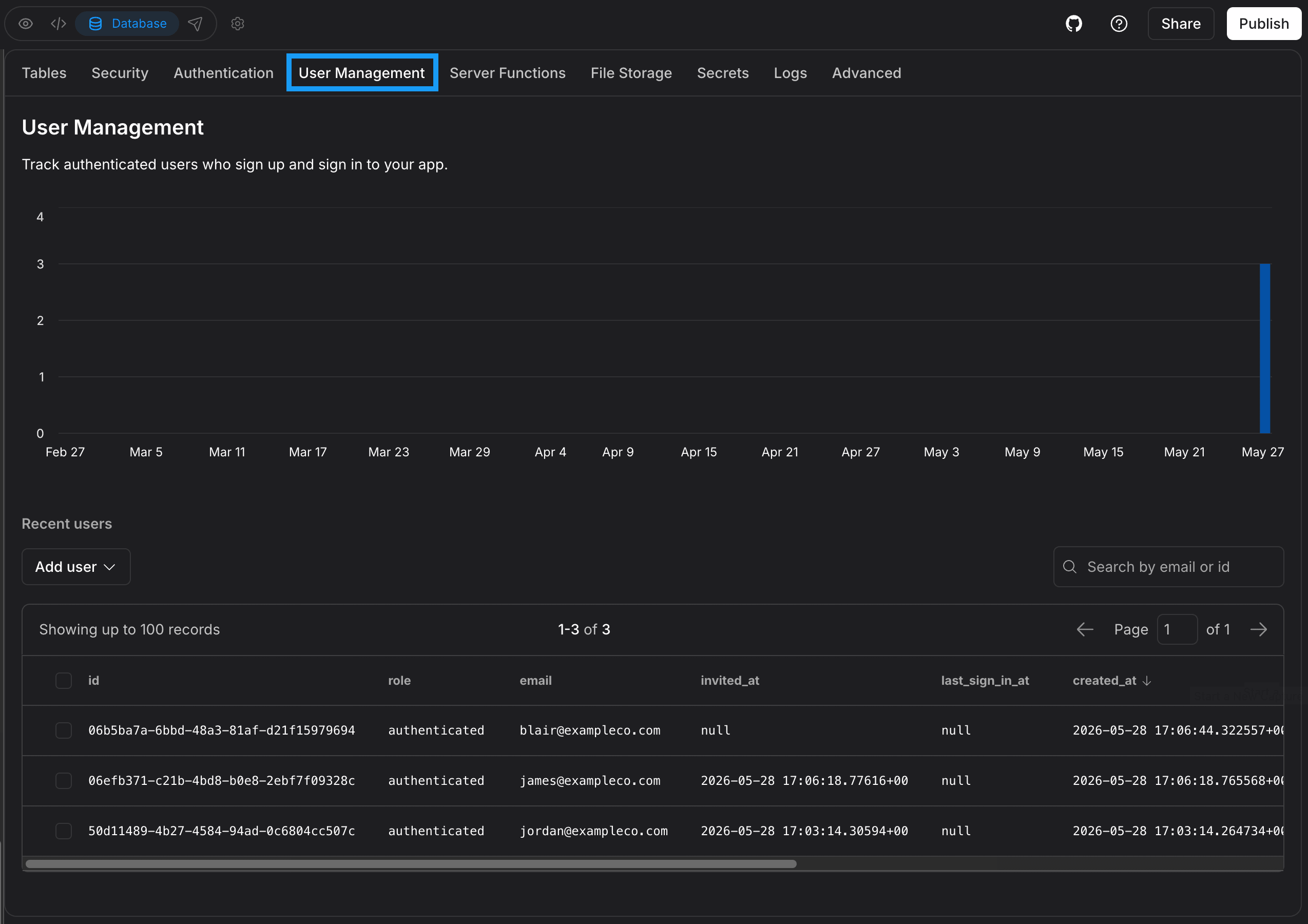 1. Log in to your Bolt project.
2. Click the **database icon** in the top center of your screen.
3. Click **User Management**.
### Add new users
From the User Management dashboard, you can add new users by manually creating a row in the database or sending an invitation via email.
Simply click the **Add User** button and then select **Create new user** or **Send invitation**. See the video below for examples.
1. Log in to your Bolt project.
2. Click the **database icon** in the top center of your screen.
3. Click **User Management**.
### Add new users
From the User Management dashboard, you can add new users by manually creating a row in the database or sending an invitation via email.
Simply click the **Add User** button and then select **Create new user** or **Send invitation**. See the video below for examples.