> ## Documentation Index
> Fetch the complete documentation index at: https://support.bolt.new/llms.txt
> Use this file to discover all available pages before exploring further.
# GitHub for version control
> Bolt integrates directly with GitHub, handling all commit and update operations automatically.
If you're new to version control and GitHub, we strongly recommend reading our [Introduction to version history, version control, and GitHub](/concepts/version-history-github) to get familiar with the basics.
When you connect Bolt to GitHub, your work is automatically backed up with a full history of changes.
This means you’re never locked into using Bolt. You can build in Bolt, switch to working directly in GitHub, and then come back to Bolt whenever you want. And since your code lives in GitHub, you can publish your site with other services too, not just through Bolt hosting or the Bolt/Netlify integration.
The GitHub connection is designed to:
* **Keep things simple**: Bolt handles the tricky parts of Git for you.
* **Keep branches separate**: Each branch has its own memory, so nothing “bleeds over” between them.
* **Give you control**: You decide which projects connect to GitHub.
* **Give GitHub organization admins control:** Admins can decide which organization repos are available to which organization accounts.
You can bring an existing GitHub project into Bolt, or start fresh in Bolt and create a new GitHub repository for it.
For an introduction to version control and GitHub with Bolt, watch the video below:
## Connect GitHub
To connect your GitHub account to Bolt, you'll first need an **individual** GitHub account.
If your GitHub organization is connected to Bolt, you can access organization repositories through your org instead. See [GitHub organization setup](/integrations/github-org) for details.
[Sign up for one](https://github.com/signup) if you don't already have one.
To connect an individual GitHub account to Bolt, follow these steps:
1. Log in to your Bolt account and open a project.
2. Click the **GitHub icon** in the top right of your screen.
3. Click **Log in to GitHub**.
4. Click **Authorize stackblitz**. (StackBlitz is Bolt's parent company.)
5. Follow any further verification steps required.
## Create a new repository from a Bolt project
Prerequisite: You must have GitHub connected to Bolt.
To create a repository from your Bolt project:
1. Log in to your Bolt account and open the project you want to link with a new GitHub repository.
2. Click the **GitHub icon** in the top right of your screen.
3. In the Create a repository window that appears, enter a name for your new repository.
4. Click **Create repository**.
5. Click **Start building** to return to Bolt.
The repository starts as private, on a `main` branch. You can set the repository to public in your GitHub settings, and you can create new branches in Bolt or on GitHub. See [Branching and merging](#branching-and-merging) for more information.
## Import an existing repository
To import a project into Bolt from one of your GitHub repositories, follow the steps below:
1. On the [Bolt homepage](https://bolt.new), click the GitHub icon below the primary chatbot.
2. Choose how you want to import:
* Use the drop-down menu to select the repository you'd like to import, or
* Click the **Import from URL** button, then enter your GitHub repository URL.
3. Click **Choose this repository**.
4. Bolt will load your repository as a new Bolt project.
## GitHub organizations integration
Bolt supports working with GitHub organizations, which allow teams to install the Bolt app at the organizational level and choose which repositories are visible to members inside Bolt.
To learn more, see [GitHub organization setup](/integrations/github-org).
## Disconnect GitHub
Fully removing your GitHub integration is a one-step process if you used your GitHub account to create your Bolt account, or a two-step process if you did not.
Either way, start by following the steps below:
1. [Log in to GitHub](https://github.com/login).
2. Click your profile icon in the top-right corner of your screen.
3. Click **Settings**.
4. Click **Applications** in the left-side navigation menu (likely near the bottom of the menu).
5. Click the **Authorized GitHub Apps** tab.
6. Click **Revoke** in the Bolt/StackBlitz row.
7. Click **I understand, revoke access**.
If you signed up for your StackBlitz/Bolt account using Google or your email address, continue to part 2 to complete the process. If you signed up using GitHub, your GitHub integration is now removed.
1. Log in to [StackBlitz](https://stackblitz.com/).
2. Click **Settings** in the left navigation menu.
3. Click the **Credentials** tab.
4. Click **Delete** in the GitHub section.
If you added a second email to your account specifically for GitHub, you can go to **Settings** > **Profile** to delete it from your account.
## Branching and merging
When working with a shared GitHub repository it is a good habit to create a new branch for your changes rather than committing directly to the `main` branch. This helps keep work isolated, reduces the chance of merge conflicts, and makes it easier to review and collaborate on changes. You can create a branch from the default branch and then open a pull request when your changes are ready to be merged.
When you create or import a repository in Bolt, you’ll start on the **main** branch. This is usually the live version of your project. You can do all your work on main, or create branches.
Branches allow you to:
* Work with others without overwriting each other’s changes.
* Work on different features separately, so unfinished work doesn’t go live.
For example, if you’re building three new features on the main branch, you’d have to finish all three before publishing. With branches, you can finish and merge each one into main as they're ready.
### Create a new branch in Bolt
Prerequisite: You must have GitHub connected to Bolt and a repository already created.
1. Log in to Bolt and open a project that is already linked to a GitHub repository.
2. Click the GitHub icon in the top-right of your screen.
3. Click **Create new branch**.
4. Enter a branch name.
5. Click **Create branch**.
You're now working on your new branch, which is also created in your GitHub repository.
### Change branches in Bolt
Prerequisite: You must have GitHub connected to Bolt, a repository already created, and multiple branches created.
1. Log in to Bolt and open a project that is already linked to a GitHub repository.
2. Click the GitHub icon in the top-right of your screen.
3. Select the branch you want to switch to.
Bolt currently doesn't support merging branches in-app. You need to merge branches in GitHub.
### Committing and fetching
Bolt saves your work automatically. Every time you make a change that doesn’t break the project, Bolt creates a commit for you.
It also checks GitHub every 30 seconds for any updates made outside Bolt and pulls those in.
Very rarely, both Bolt and GitHub might update at almost the same time. If that happens, Bolt will keep your changes and overwrite the GitHub version.
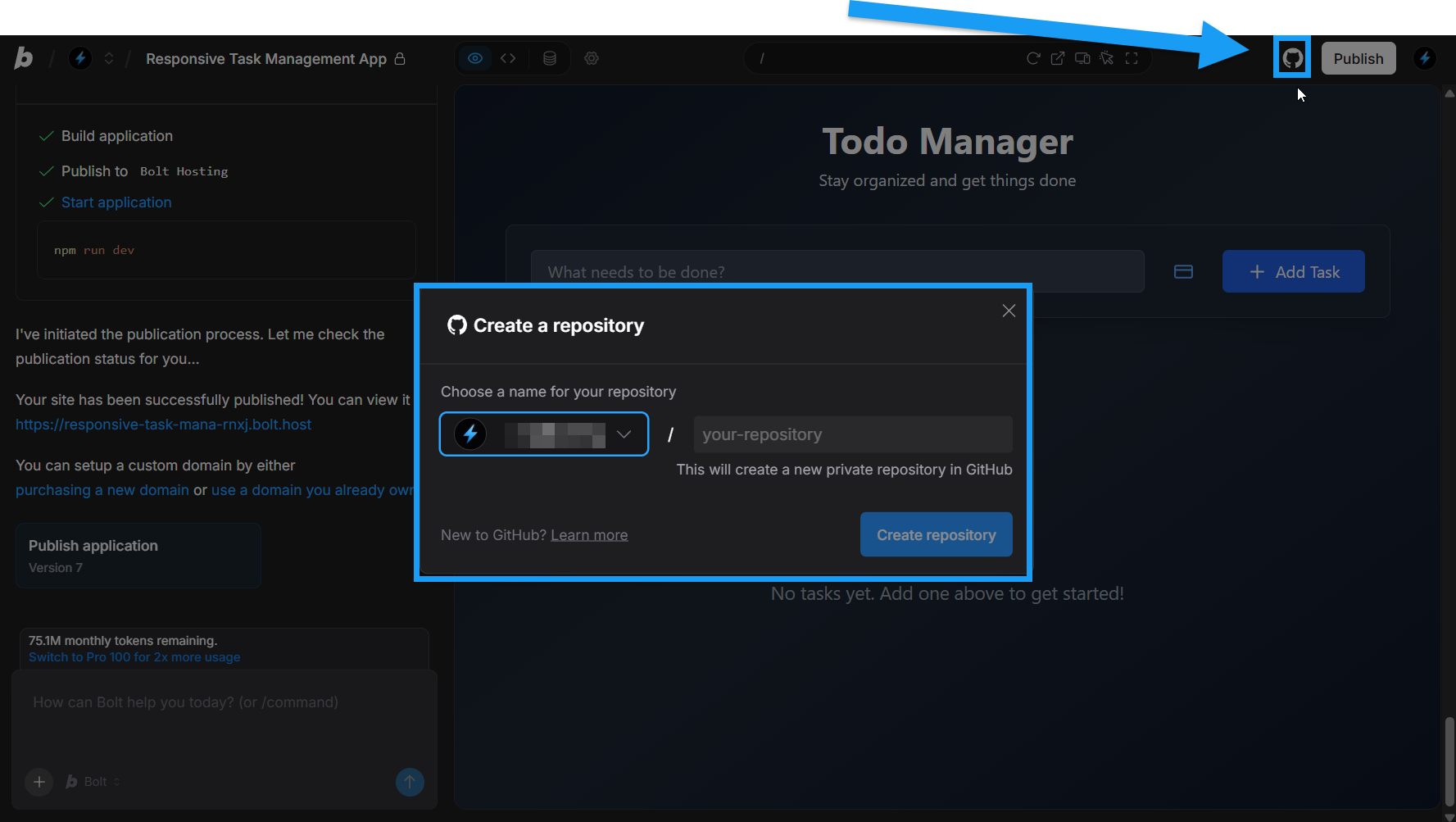 1. Log in to your Bolt account and open the project you want to link with a new GitHub repository.
2. Click the **GitHub icon** in the top right of your screen.
3. In the Create a repository window that appears, enter a name for your new repository.
4. Click **Create repository**.
5. Click **Start building** to return to Bolt.
The repository starts as private, on a `main` branch. You can set the repository to public in your GitHub settings, and you can create new branches in Bolt or on GitHub. See [Branching and merging](#branching-and-merging) for more information.
## Import an existing repository
To import a project into Bolt from one of your GitHub repositories, follow the steps below:
1. Log in to your Bolt account and open the project you want to link with a new GitHub repository.
2. Click the **GitHub icon** in the top right of your screen.
3. In the Create a repository window that appears, enter a name for your new repository.
4. Click **Create repository**.
5. Click **Start building** to return to Bolt.
The repository starts as private, on a `main` branch. You can set the repository to public in your GitHub settings, and you can create new branches in Bolt or on GitHub. See [Branching and merging](#branching-and-merging) for more information.
## Import an existing repository
To import a project into Bolt from one of your GitHub repositories, follow the steps below:
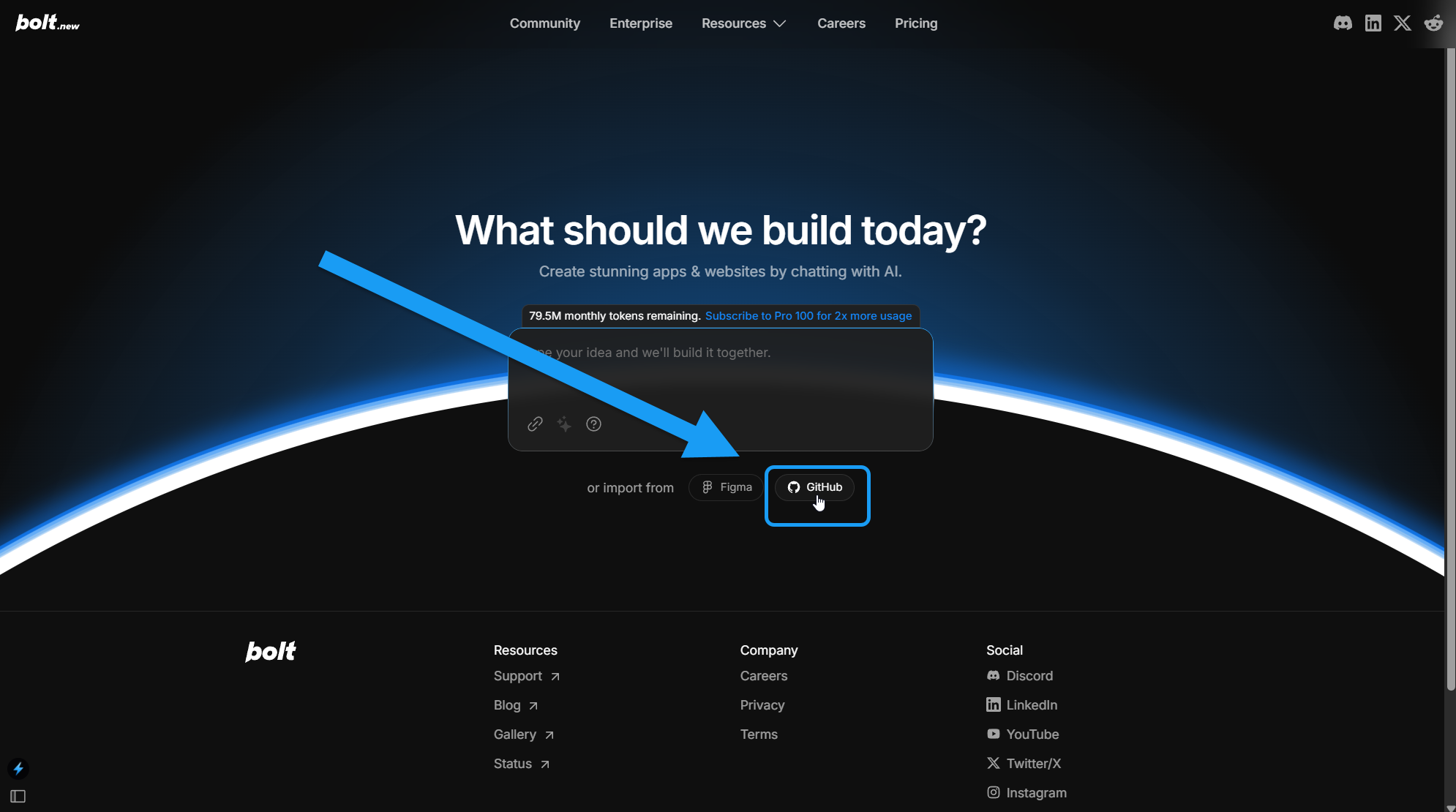 1. On the [Bolt homepage](https://bolt.new), click the GitHub icon below the primary chatbot.
2. Choose how you want to import:
* Use the drop-down menu to select the repository you'd like to import, or
* Click the **Import from URL** button, then enter your GitHub repository URL.
3. Click **Choose this repository**.
4. Bolt will load your repository as a new Bolt project.
## GitHub organizations integration
Bolt supports working with GitHub organizations, which allow teams to install the Bolt app at the organizational level and choose which repositories are visible to members inside Bolt.
To learn more, see [GitHub organization setup](/integrations/github-org).
## Disconnect GitHub
Fully removing your GitHub integration is a one-step process if you used your GitHub account to create your Bolt account, or a two-step process if you did not.
Either way, start by following the steps below:
1. On the [Bolt homepage](https://bolt.new), click the GitHub icon below the primary chatbot.
2. Choose how you want to import:
* Use the drop-down menu to select the repository you'd like to import, or
* Click the **Import from URL** button, then enter your GitHub repository URL.
3. Click **Choose this repository**.
4. Bolt will load your repository as a new Bolt project.
## GitHub organizations integration
Bolt supports working with GitHub organizations, which allow teams to install the Bolt app at the organizational level and choose which repositories are visible to members inside Bolt.
To learn more, see [GitHub organization setup](/integrations/github-org).
## Disconnect GitHub
Fully removing your GitHub integration is a one-step process if you used your GitHub account to create your Bolt account, or a two-step process if you did not.
Either way, start by following the steps below:
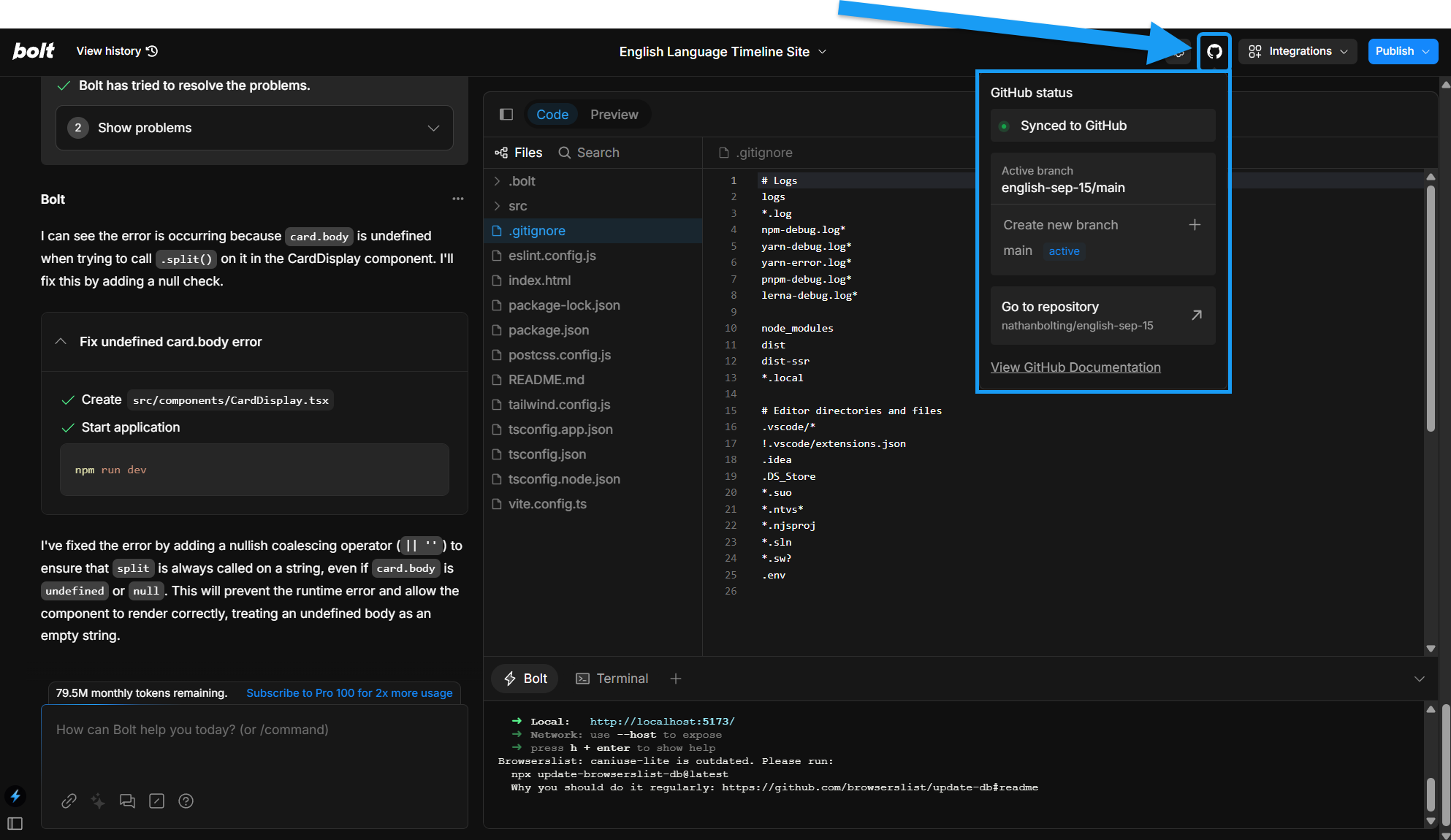 3. Click **Create new branch**.
4. Enter a branch name.
5. Click **Create branch**.
3. Click **Create new branch**.
4. Enter a branch name.
5. Click **Create branch**.