> ## Documentation Index
> Fetch the complete documentation index at: https://support.bolt.new/llms.txt
> Use this file to discover all available pages before exploring further.
# Preview issues
> Troubleshooting for problems with your project's preview or development environment.
If your project isn't loading or running correctly in the preview window, find the specific symptom below for steps to resolve it.
## Check Bolt's status
Before troubleshooting, check the [Bolt status page](https://status.bolt.new/) for any active incidents. If Bolt is experiencing a known issue, check your project again after the issue resolves to see if that also resolves your problem.
## White screen, grey screen, or no preview showing
If you see a white or grey screen with nothing in the preview window, you have a few options for troubleshooting. Start by refreshing or prompting Bolt for help, then move on to other strategies if the problem persists.
1. Hard refresh the page:
* On Mac, press `Cmd + Shift + R`.
* On Windows, press `Ctrl + Shift + R`.
2. Try opening the project in a new tab.
3. If the preview still doesn't show, prompt Bolt: `The preview is not showing, fix this.` If Bolt can fix the issue from this prompt, it should work on the first try. Retrying the same prompt is unlikely to help.
### Check the browser console for error messages
A white screen can mean there's a runtime error that Bolt can't automatically detect, and the console can give you more information about what's going wrong.
To open the browser console:
* On macOS: press `CMD + Option + J`
* On Windows: press `Ctrl + Shift + I`
With the console open, get the white screen to show (for example, by refreshing your browser), then copy any error messages you see and paste them into Bolt. This gives Bolt specific information to help diagnose and fix the issue.
If the console shows errors that reference a Supabase URL, your project may be expecting a database connection that isn't set up yet. If you have an existing Supabase database, [connect it from your Advanced database settings](/integrations/supabase#connect-a-supabase-database). If you see Supabase URL errors while connected to a Bolt database, [contact support or reach out on Discord](/troubleshooting/contact-support).
### Troubleshoot in Plan mode
Switch to [Plan mode](/best-practices/plan-mode) and ask Bolt to review the code directly:
`The app preview is showing a white screen. Review the project for runtime errors, missing dependencies, or configuration issues that could be preventing it from loading. Explain what you find and suggest a fix.`
Bolt will generate a plan and show you an **Implement plan** button. Click it to apply all the suggested changes, or switch back to Build mode and tell Bolt specifically what you want it to do.
### Use npm run build
Try running the `npm run build` command in the terminal. Running a build surfaces compilation errors that may not appear during normal development, which can help pinpoint what's preventing the preview from loading.
1. Click the **code icon** to switch to Code View.
2. Click **Terminal** in the bottom section of the page.
3. Type `npm run build`, then press **Enter**.
4. Click the eye icon to return to Preview Mode to confirm if your issue is resolved.
### Request Bolt to audit environment variables
Managing environment variables is a more advanced task. If this is new territory for you, the [Intro to Databases](/concepts/intro-databases) guide offers a simple overview of what environment variables are and how they fit into your workflow.
If none of the above steps resolve the issue, ask Bolt to review your project and list every environment variable it expects. Projects often show a white screen when required variables are missing.
Use a prompt like this: `Perform a full review of the project and list every environment variable the application requires. Include guidance on where each variable can be found so that I can add them to my setup.`
**Choose how to manage the variables**
Once you have the full list, decide how you want to add them.
**If you use a local .env file:**
Ask Bolt to generate a complete `.env` template with placeholder values. This gives you a file that you can copy into your project and fill in with real values later.
Example prompt: `Create a .env file for this project with all required environment variables. Use placeholder values so I can replace them with my own.`
**If you use the Secrets menu:**
Ask Bolt for a list of required variables and where to find each value, then add them through the Secrets interface.
Example prompt: `List every environment variable and tell me where each value can be found so I can add them through the Secrets interface.`
## Preview stuck on "Your preview will appear here"
Sometimes the preview never loads and stays on the **Your preview will appear here** screen. This is different from a [white or grey screen](#white-screen-grey-screen-or-no-preview-showing), where your project loads but the preview doesn't display correctly. Here, the project never loads, usually because of a port conflict or an error that stops the preview from running.
The best approach to troubleshooting is to show Bolt the error. In [Code view](/building/using-bolt/code-view), you can find and copy the error details, then paste them back into the chat. Giving Bolt the exact error from the terminal helps it diagnose the problem far more reliably than a general prompt like "the preview isn't working."
1. In your project, in the top center of the screen, click the **code icon (\<>)** to switch to Code view.
2. In the bottom section of the page, notice three tabs: Bolt, Publish Output, and Terminal. Bolt should be open by default.
3. Look for any error messages or text highlighted in red, as shown in the following screenshot.
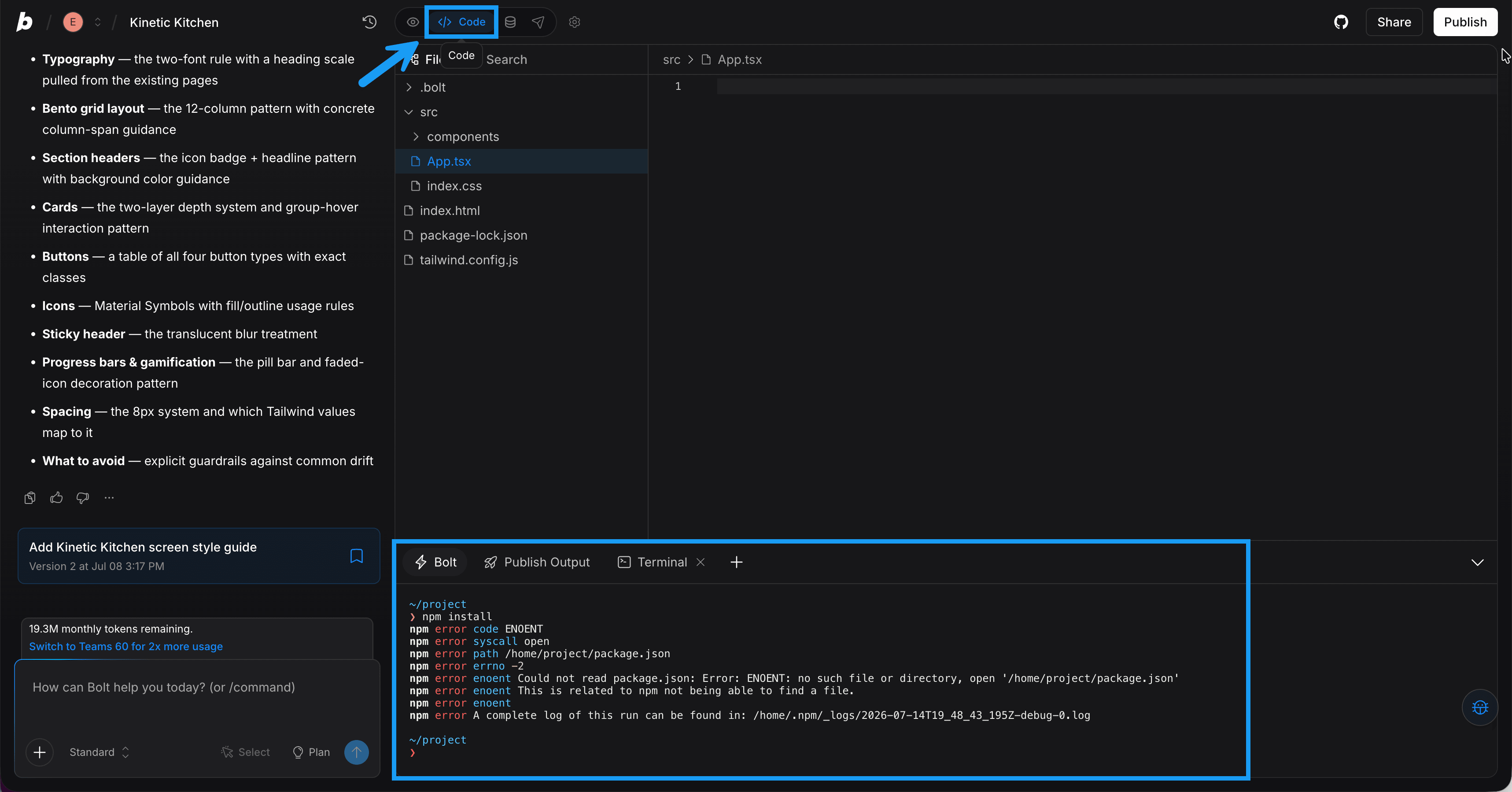 4. Select the output, then copy it.
5. Paste the output into the chat and ask Bolt to fix it, for example: `The preview isn't loading. Here's the output from the terminal:` followed by the text you copied.
## Out of memory (OOM)
This error appears when your system doesn’t have enough available memory to run the WebContainer environment, which powers projects in Bolt and StackBlitz. The WebContainer relies on your local device’s resources to simulate a full development environment inside the browser, so limited memory can cause it to fail to start or crash unexpectedly.
To resolve this:
1. Close unnecessary browser tabs and background applications to free up system memory.
2. If you’re running multiple Bolt or StackBlitz projects at once, close all but the one you’re actively working on.
3. Refresh your browser and try reopening the project.
4. If the problem persists, restart your device to clear cached processes and release additional memory.
If you regularly encounter this error, consider using a browser with fewer extensions or increasing available system memory.
## WebContainer startup error
Bolt relies on [WebContainers](https://webcontainers.io/), a browser-based runtime from StackBlitz that enables a full-stack development environment in the browser.
If you encounter a WebContainer error, try the following:
* Make sure you’re using Chrome or another Chromium-based browser.
* Clear your browser cache.
* Temporarily disable browser extensions, especially ad blockers, to see if the issue clears.
* If you’re using a VPN, turn it off and try again.
## Still stuck?
If your preview still isn't loading, [contact support](/troubleshooting/contact-support).
4. Select the output, then copy it.
5. Paste the output into the chat and ask Bolt to fix it, for example: `The preview isn't loading. Here's the output from the terminal:` followed by the text you copied.
## Out of memory (OOM)
This error appears when your system doesn’t have enough available memory to run the WebContainer environment, which powers projects in Bolt and StackBlitz. The WebContainer relies on your local device’s resources to simulate a full development environment inside the browser, so limited memory can cause it to fail to start or crash unexpectedly.
To resolve this:
1. Close unnecessary browser tabs and background applications to free up system memory.
2. If you’re running multiple Bolt or StackBlitz projects at once, close all but the one you’re actively working on.
3. Refresh your browser and try reopening the project.
4. If the problem persists, restart your device to clear cached processes and release additional memory.
If you regularly encounter this error, consider using a browser with fewer extensions or increasing available system memory.
## WebContainer startup error
Bolt relies on [WebContainers](https://webcontainers.io/), a browser-based runtime from StackBlitz that enables a full-stack development environment in the browser.
If you encounter a WebContainer error, try the following:
* Make sure you’re using Chrome or another Chromium-based browser.
* Clear your browser cache.
* Temporarily disable browser extensions, especially ad blockers, to see if the issue clears.
* If you’re using a VPN, turn it off and try again.
## Still stuck?
If your preview still isn't loading, [contact support](/troubleshooting/contact-support).