Agents are the intelligence behind how Bolt understands your requests, solves problems, and writes the code for your app. They power the building experience by turning your instructions into real features. In Bolt, you can choose the agent that best fits your work: the v1 Agent (legacy) or Claude Agent. When using Claude Agent, you can also select the underlying model (LLM) that drives it, giving you more control over speed, capability, and cost as you build.
To learn more about large language models generally, see Introduction to LLMs.

Build with your preferred agent

Bolt gives you the choice of which AI agent powers your builds, so you can work in the way that suits you best. You can choose between two options:
  • Claude Agent – Our most capable builder in Bolt and the best choice for production-quality apps and larger development work. It produces more complete results, makes stronger decisions, and handles complex reasoning with fewer errors. It may take a little longer to run and can use more tokens, although the higher quality often saves time overall. Claude Agent is powered by the Claude 4.5 model family from Anthropic, and you can choose the level of performance you want, including fast and efficient Haiku 4.5, the everyday default Sonnet 4.5, or the powerful Opus 4.5. Plan Mode is also available with Claude Agent, which helps you develop detailed build strategies and execute them accurately.
  • v1 Agent (legacy) – Based on the original Bolt experience, this agent is more likely to produce incomplete apps and require extra fixes, so it’s not recommended for production work. It is, however, faster, uses fewer tokens per prompt, and works well for quick prototypes or testing layouts and design ideas. It uses Anthropic Claude Sonnet as its LLM.
Bolt strongly recommends using Claude Agent if you want the best results and the smoothest building experience.

Claude Agent vs. v1 Agent (legacy) efficiency

While v1 Agent (legacy) might seem more efficient because it uses fewer tokens at the start, this can be misleading. For any project beyond a quick mockup or prototype, you will likely save tokens overall by using Claude Agent. Its more comprehensive approach to building leads to higher quality planning, greater reliability, and fewer mistakes. This means less rework, fewer wasted calls, and more efficient use of your token budget over time.

Switch between Bolt agents and models

You can switch between agents in two places: from the Bolt homepage when starting a build, or inside a project while working. Note that switching between agents mid-project clears your chat history, though this is intentional to help prevent confusion between agents. Your new agent will still have full access to your project and files. Any general or ongoing instructions you want to preserve should be added to Project Knowledge.
If you are already using Claude Agent, switching between models in Claude Agent does not clear your chat history.

Refreshing your project

The default model for Claude Agent is Sonnet 4.5. Reloading your project or refreshing your page in your browser will also reset Bolt to the default model.

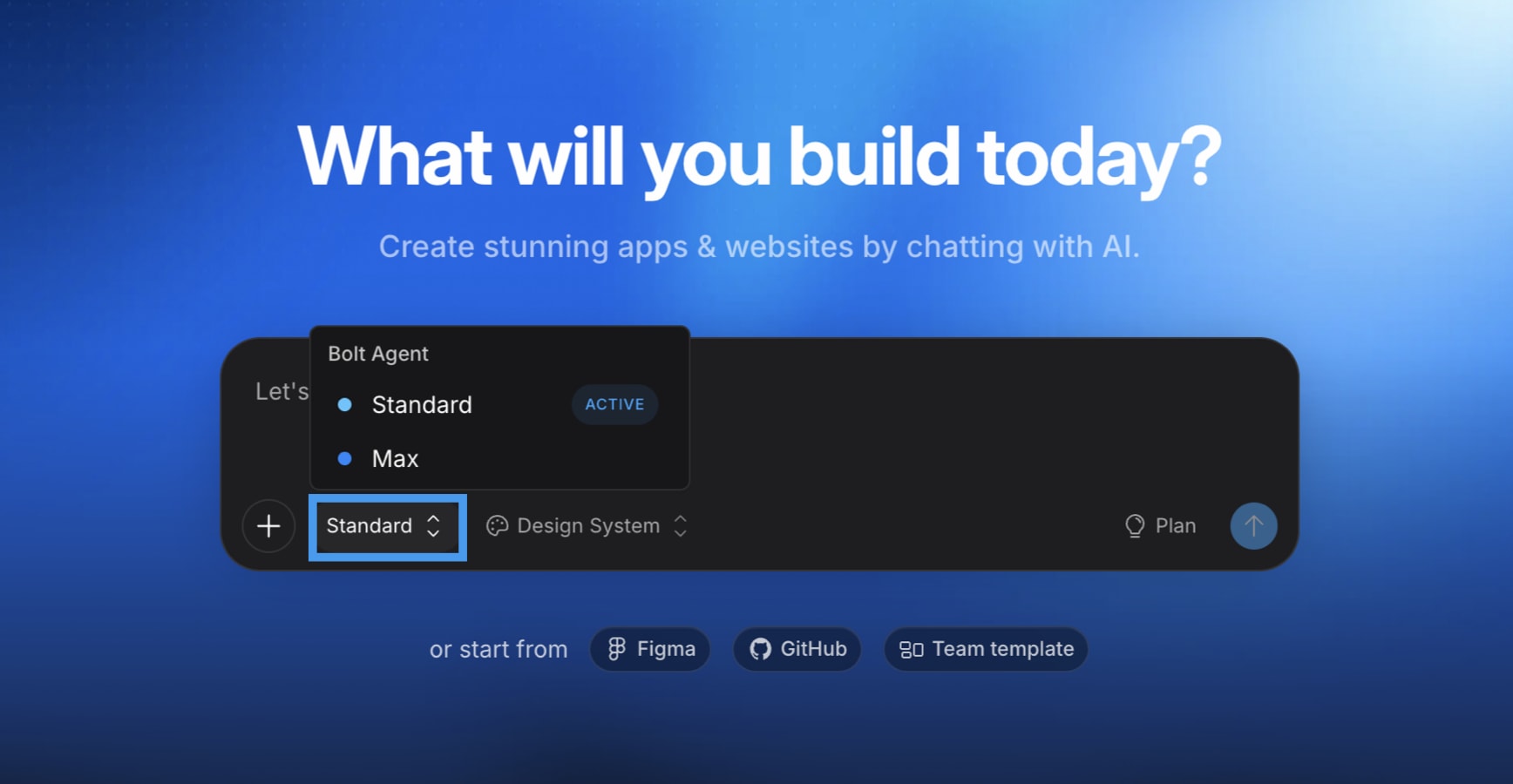
Switch agents or models on the homepage

Screenshot of switching agents on homepage in Bolt.
When you’re on the Bolt homepage and about to start a new chat, you can use the drop-down agent selector at the bottom of the chatbox to select your preferred agent. Within Claude Agent, you can also choose the model that powers it: Haiku 4.5, Sonnet 4.5, or Opus 4.5.
Sonnet 4.5 is the default Claude Agent model.

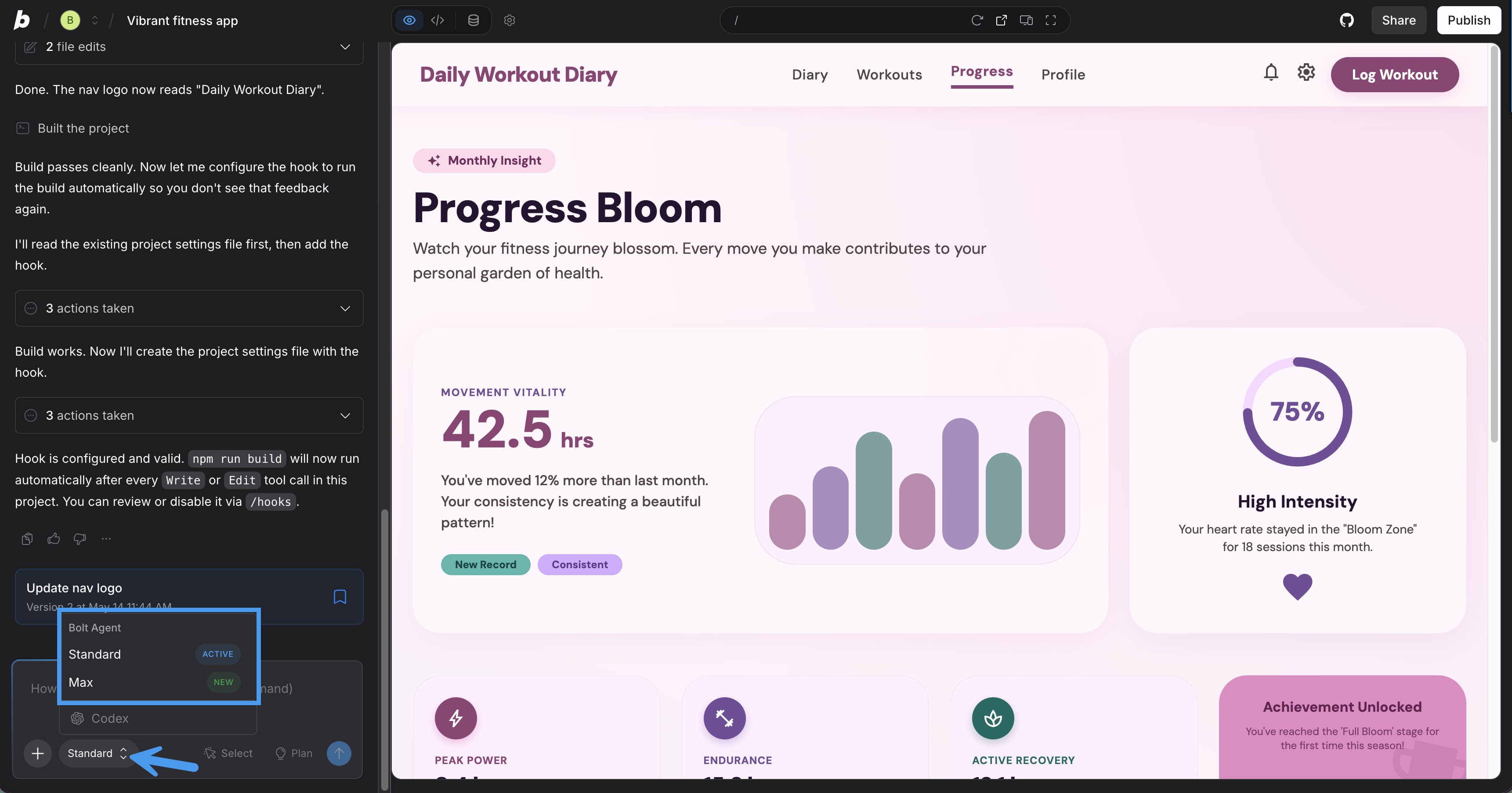
Switch agents or models in a project

Screenshot of switching agents on homepage in Bolt.
When working inside a project, follow these steps to switch agents:
  1. In the bottom-left corner of the chatbox, click the current model name to open the menu.
  2. Click the name of the new agent or model you want to select.
  3. Confirm your choice.
Hovering over an agent’s name will reveal information about the agent.

Differences between agents

Bolt works a little differently depending on which agent you choose. Some features and parts of the interface change to match the agent’s strengths. If you switch agents, you may notice slight differences in the tools available or how the chat behaves. Key differences include:
  • Claude Agent works with Plan Mode, whereas the v1 Agent (legacy) works with Discussion Mode.
  • Claude Agent allows you to select between specific models, including Haiku, Sonnet (default), and Opus.
  • Claude Agent can create Bolt Databases, or let you switch that database to your own Supabase account. It can also work with projects which used the v1 Agent (legacy) to integrate your own Supabase database.
FeatureClaude Agentv1 Agent (legacy)
Plan Mode
Create Bolt databases
Select your model
Works with Bolt databases
Connects to Supabase
Discussion Mode

Model selection inside Claude Agent

Model selection lets you choose how Claude Agent behaves in your project. Each model offers a different balance of capability, speed, and cost, so your choice can influence both performance and how efficiently your system runs. Sonnet 4.5 is the default option because it delivers strong results for most use cases. You’re free to switch models at any point during development, and selecting the right one can help match your agent’s behavior to the needs of your product. The sections below outline each available model, where it excels, and how to decide which one fits your situation best.

Haiku 4.5

haiku-h_wly7cr

Fast and cost-efficient for simple or high-volume tasks. With lower token usage, you’re free to iterate and experiment more.Best for:
  • Quick UI or styling edits
  • Content changes and translations
  • Test data or seed data
  • Straightforward pages such as legal content
  • Tasks where you already know the solution
Haiku is a great option when you want fast results with minimal token usage.

Sonnet 4.5

sonnet-h_rwkmqs

Balanced performance for everyday building. This is the default model for Claude Agent.Best for:
  • Scaffolding new apps and core features
  • Database work and backend logic
  • Importing Figma frames into functional UI
  • “Normal” refactoring and debugging
Sonnet combines strong design intuition with dependable coding skills. As the default model, it’s a great choice for everyday building.

Opus 4.5

opus-h_hsyui1

Highest reasoning ability for complex, system-wide decisions.Best for:
  • Enterprise or multi-tenant architectures
  • Sensitive or compliance-related workflows
  • Large refactors that span many files
  • Hard engineering problems where mistakes are costly
Opus can solve complex problems more accurately, and often in fewer steps. Use it whenever you need maximum horsepower.

Comparing models

ModelSpeedIntelligenceBest use
Haiku 4.5FastestGood for everyday editingQuick UI or content changes
Sonnet 4.5BalancedAll-around builderMost feature work in Bolt
Opus 4.5SlowerDeepest reasoningComplex or high-stakes tasks
A helpful approach is to build most features with Sonnet 4.5, switch to Haiku 4.5 for fast follow-up changes, and use Opus 4.5 when the work becomes complex or high-stakes. Opus is also valuable when you have a well-defined idea from the start and want to build it correctly from the beginning. Example:
  1. Use Opus 4.5 to design and implement complex architecture.
  2. Use Sonnet 4.5 to implement individual features.
  3. Use Haiku 4.5 to polish copy and styling.
Bolt recommends using Haiku 4.5 over switching to the v1 agent (legacy) if minimizing token usage per request is the goal.
You can switch between Haiku 4.5, Sonnet 4.5, and Opus 4.5 at any time, as detailed in Switch between agents and models. Some notes on switching:
  • Context is preserved when switching within Claude Agent
  • Switching to and from Bolt v1 Agent starts a fresh context
  • Switching models within Claude Agent can help manage token usage for different phases of the build

How Bolt handles context

All Claude 4.5 models support large context windows. However, to keep performance smooth, Bolt limits the active history to recent messages. This helps reduce token usage and keeps builds responsive. If a detail from earlier becomes important again, briefly restate it to bring it back into context. For any ongoing context or instructions that are important, be sure to add them to either your Project Knowledge, Account Knowledge, or, if applicable, Teams Knowledge.