

Features
Project context awareness
Every discussion message includes your project codebase for context-aware responses, as well as the most recent messages. Because Plan Mode has the entire context of your project, there is a wide range of use cases, including:- Debugging assistance
- Recommendations on tools, libraries and APIs
- Product/project decision-making
- Suggestions on how to improve design
- Suggestions for new features
- Understanding and integrating external APIs
- Generating implementation plans for later execution
- Use the Select tool to highlight an element on the page and discuss potential changes
Web research
When Bolt answers a question, it can pull in real-time, up-to-date information from trusted web sources instead of just relying on what it was trained on. This helps ensure the answers are accurate, relevant, and not outdated. When a search has been conducted, Bolt displays the sources at the top of the response. For example:- If you ask about the latest Stripe API updates, Bolt won’t just rely on old knowledge; it will search for the latest documentation and give you a more reliable answer.
- If you ask about a bug in a popular library, it can check forums or support pages for the most recent solutions.
Quick action buttons
If your question or prompt has an intuitive action associated with it, Bolt will likely generate quick action buttons at the end of its response. With these buttons, you can take immediate actions such as:- Implement this plan (auto-switches to Build Mode to apply changes)
- Show an example
- Refine this idea
How to use Plan Mode
Plan Mode helps you map out steps, reason through complex problems, and build strategies. While its main strength is structured planning, it can also search the web or explore your codebase if needed.Use Plan Mode on the Bolt homepage
You can begin your Bolt project in Plan Mode right from the first prompt. This lets you create and refine a plan through back-and-forth discussion before executing a build, helping you avoid unwanted changes and use fewer tokens overall.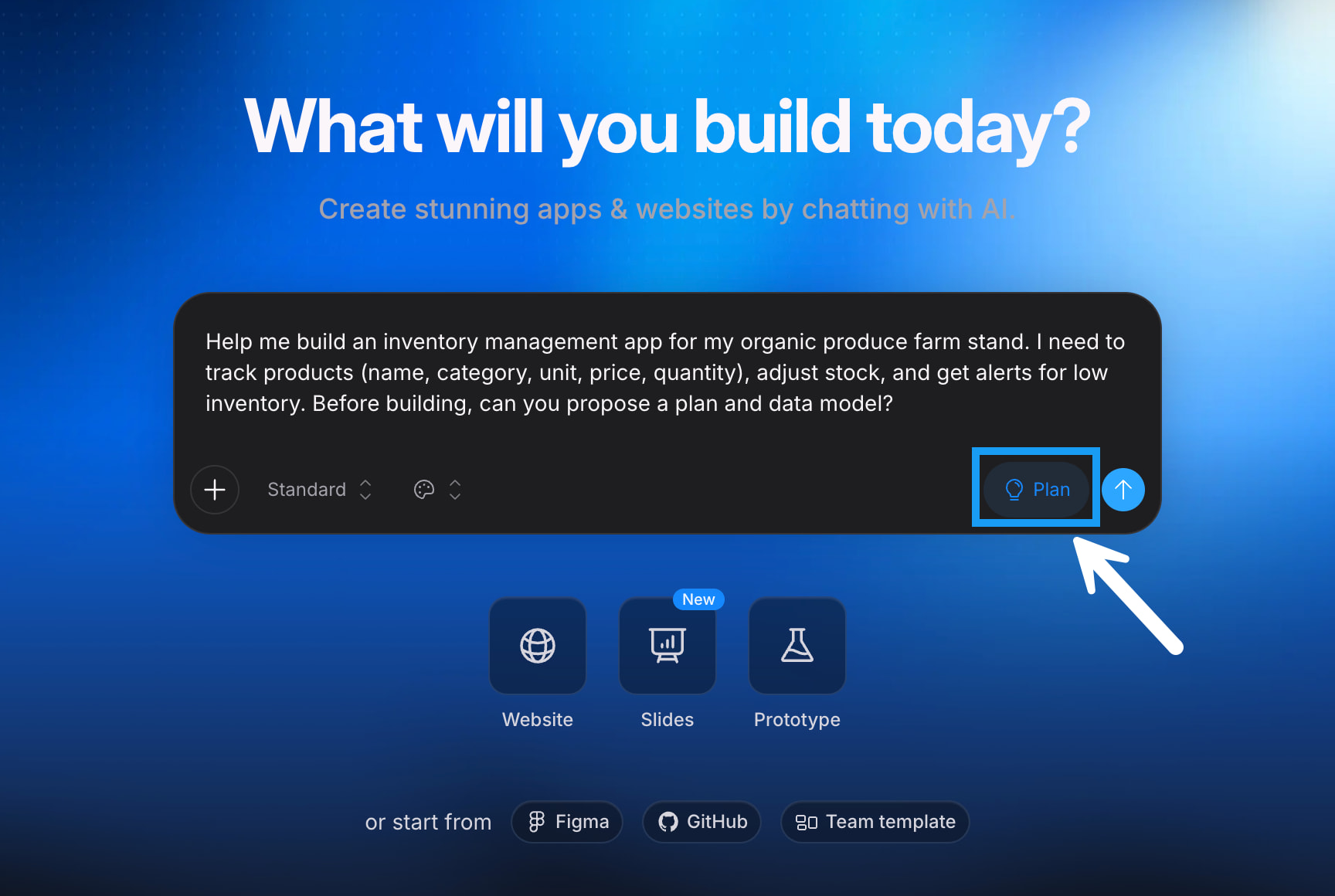
If you want to create a mobile app, it’s important to mention this directly in your prompt. For example, you might prompt: “Build a mobile app that helps people track their daily habits.”
Use Plan Mode in a project
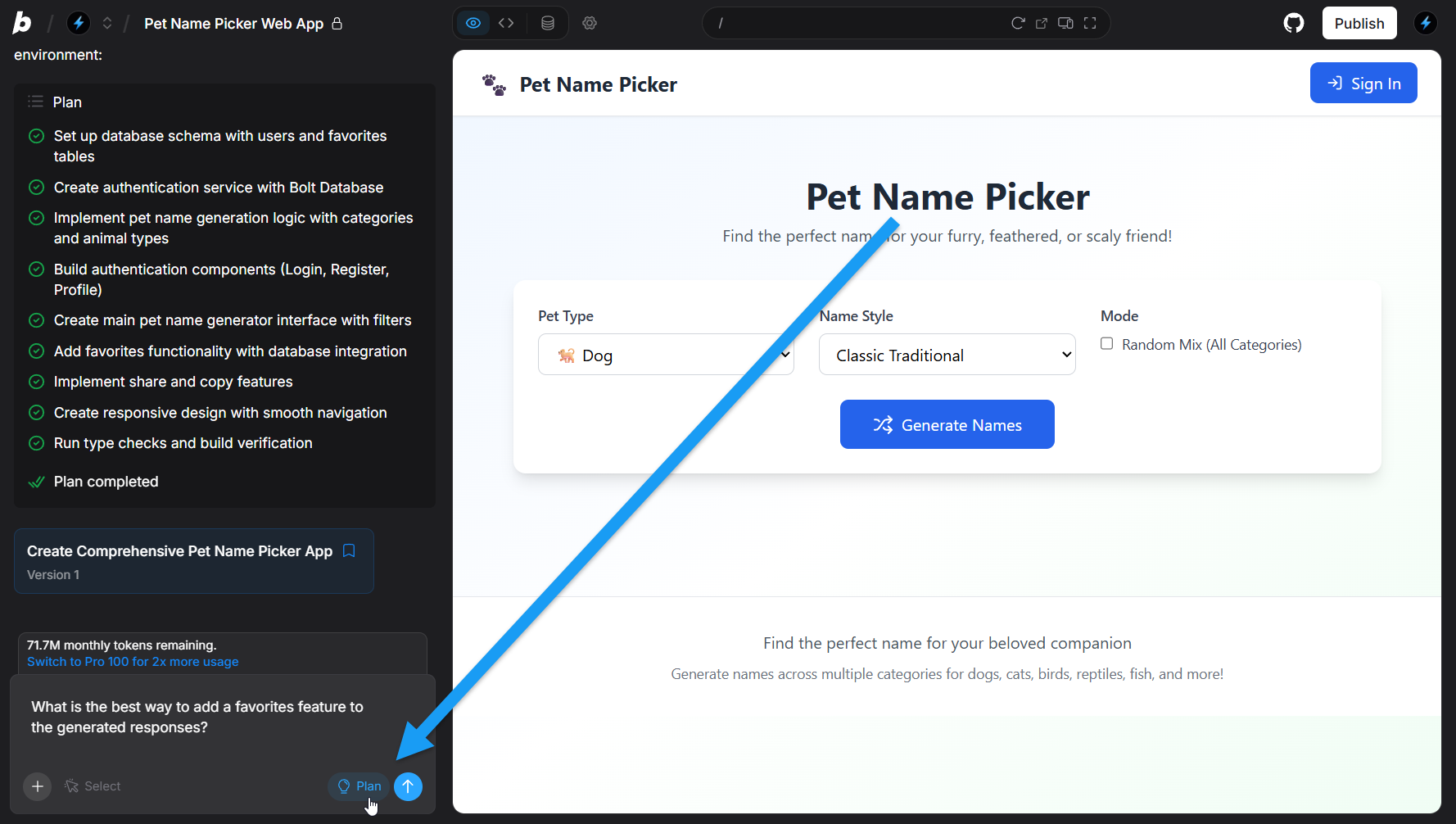
- Open your project.
- In the bottom-right corner of the chatbox, click Plan.
- Enter your question or prompt, and read the response. You can then either:
- Continue the discussion.
- Use one of the quick action buttons to implement the suggestion.