Account settings let you personalize how Bolt looks and works, and manage the tools connected to your account.
Open your account settings
You can open your account settings from the Bolt homepage or from inside a project.
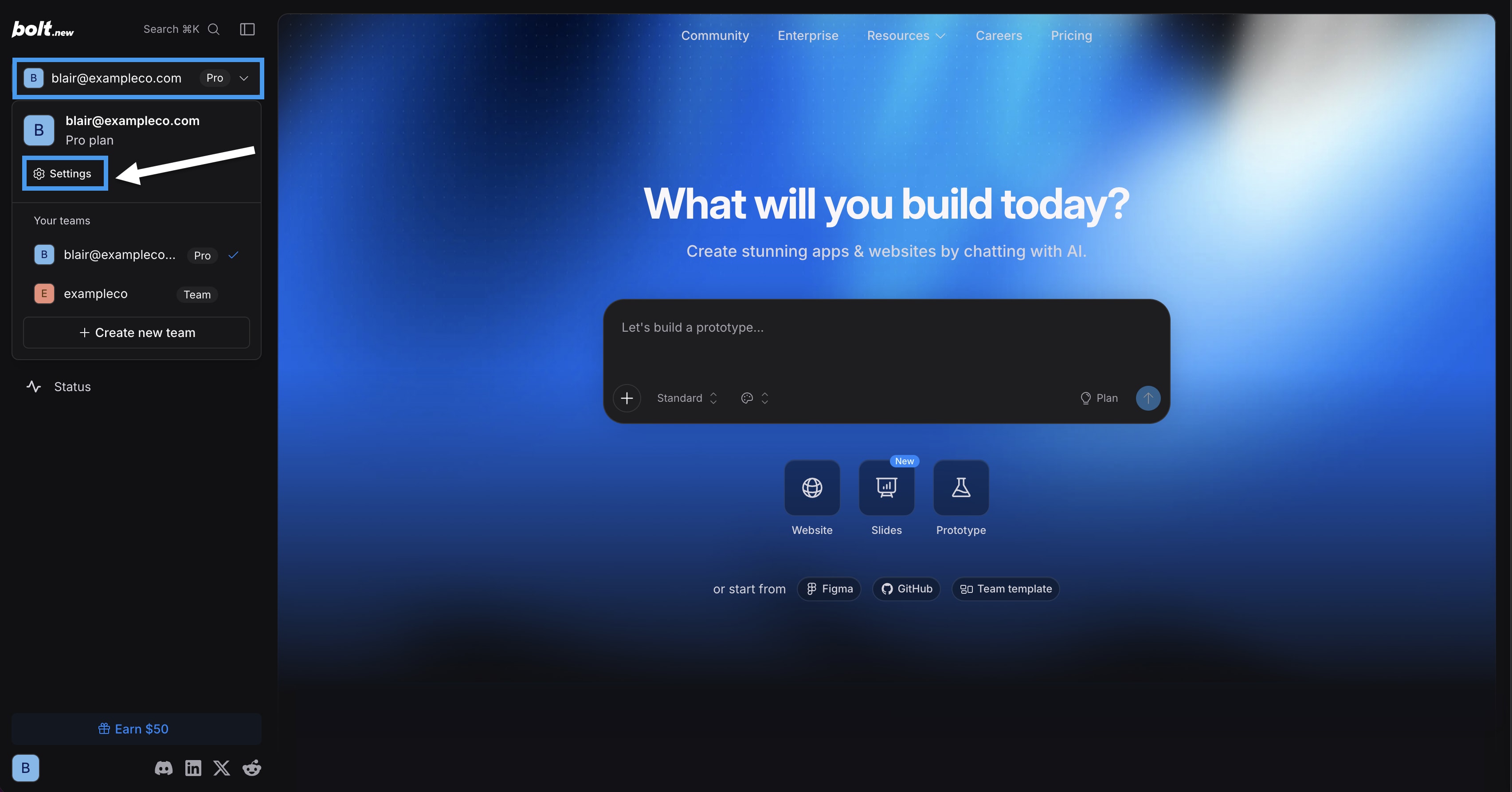
- In the left sidebar, click your avatar.
- Click Settings. The General settings page opens. Navigate to other account settings using the left navigation menu.
General
Select a theme, turn off or on sound notification, set default agent, and make other selections to tailor your account to your preferences.
Theme
Controls which color mode Bolt uses. Default is Dark. Options are Light, Dark, and System, which matches Bolt’s theme to your device setting.
Display token usage in chat
Controls whether your monthly token balance shows above the chatbox when you’re in a project. Default is off.
Sound notification
Controls whether Bolt plays a sound notification when the agent finishes responding. Default is on.
Default agent
Controls which agent Bolt uses automatically when you start a new project. Default is Standard.
The Default agent setting only applies to new projects. If you come back to an existing project, or if you switch to a different agent after starting your project, Bolt uses the last agent you selected.
Editor line wrapping
Controls whether long lines of code wrap in the code editor when you’re using Code view. Default is on.
Show open-source design systems after creating your own
Controls whether the built-in open-source design systems stay available in the Design system menu in the chatbox after you add your own. The built-in options are Chakra, Material UI, and Shadcn. Default is on.
With this setting on, your design system appears in the Design system menu alongside the open-source ones. When you turn it off, your design system replaces the open-source ones, so only your own appears in the menu.
To learn how to add your own design system, see Add your design system.
Applications
Connect and manage third-party applications like Supabase, Netlify, Figma, and GitHub.
Knowledge
Add background instructions for Bolt to follow across all of your projects. Account knowledge gives Bolt a reliable sense of context around goals, style expectations, terminology, constraints, and workflow habits. Instead of repeating these details in every prompt, add them in knowledge so the agent uses them automatically.
If you want to set knowledge for a specific project that does not apply to your other projects, you can add project knowledge directly in your Project settings.
Connectors (MCP)
Connect Bolt to the apps and data sources you use, like Notion, Linear, GitHub, or others. Bolt offers built-in connectors for several tools, and you can also add custom connectors. To learn more, see Connect to an MCP server.
Add-on features
Extend what Bolt can do with optional features.
Dynamic reasoning
Controls whether Bolt uses deeper reasoning to produce more accurate results for complex prompts, such as multi-step logic, debugging, or architectural decisions. Default is off.
Because this setting requires more processing per prompt, it uses more tokens. Consider turning it on only when you need deeper reasoning, then turning it off again.
Image generation
Controls whether Bolt can create images from text descriptions directly in your conversation. Default is off.
Image generation produces high-quality custom images, but uses significantly more tokens than text-based prompts.
To learn more, see Generate AI images for your project.