Team settings let team admins control how the team’s shared workspace operates. These settings cover member roles, publishing, integrations, and data exports.
Only team admins can view and change the settings on this page.
Open your team settings
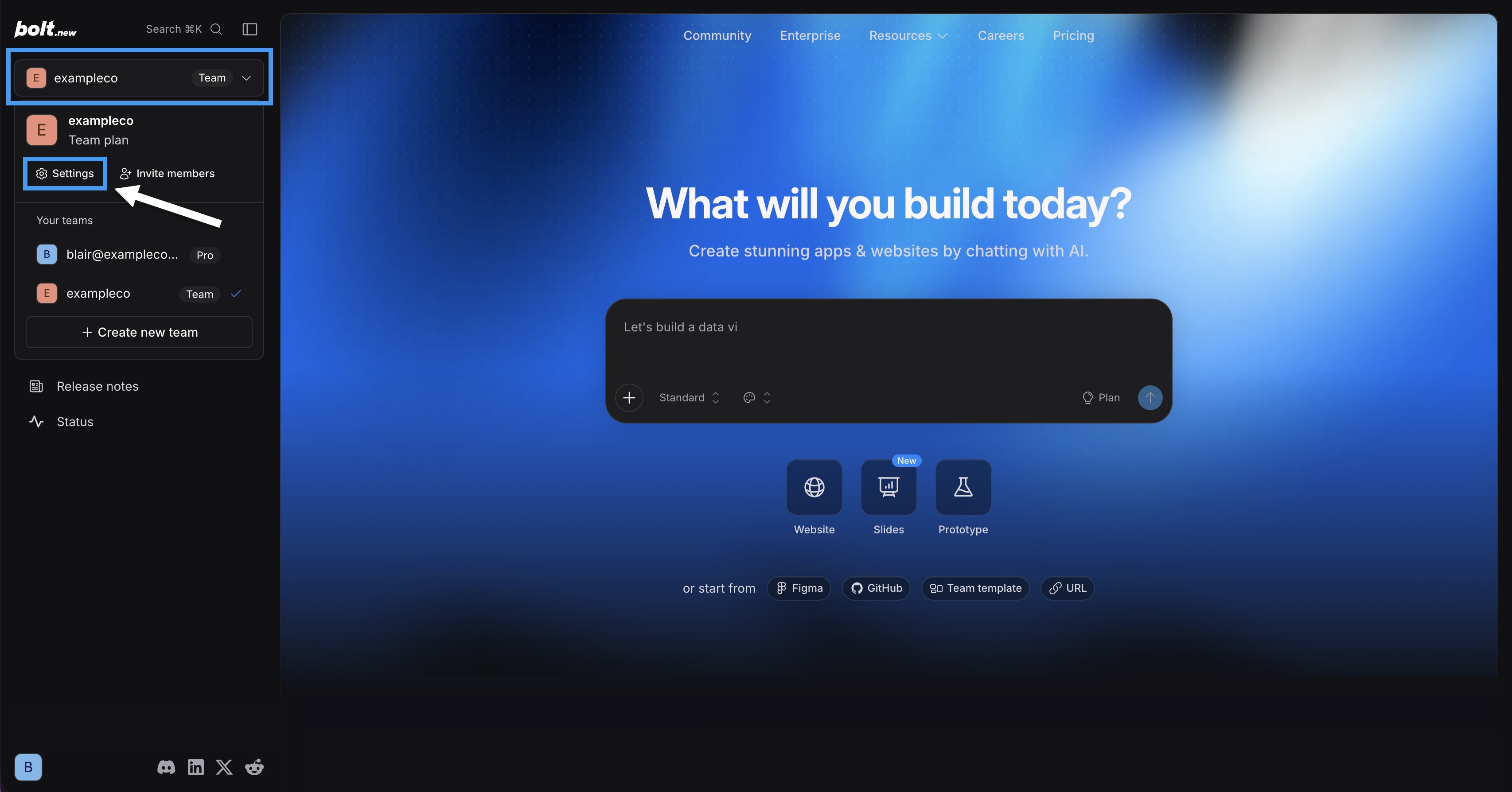
- In the sidebar, click your team name, then click Settings. The settings open to the Team page.
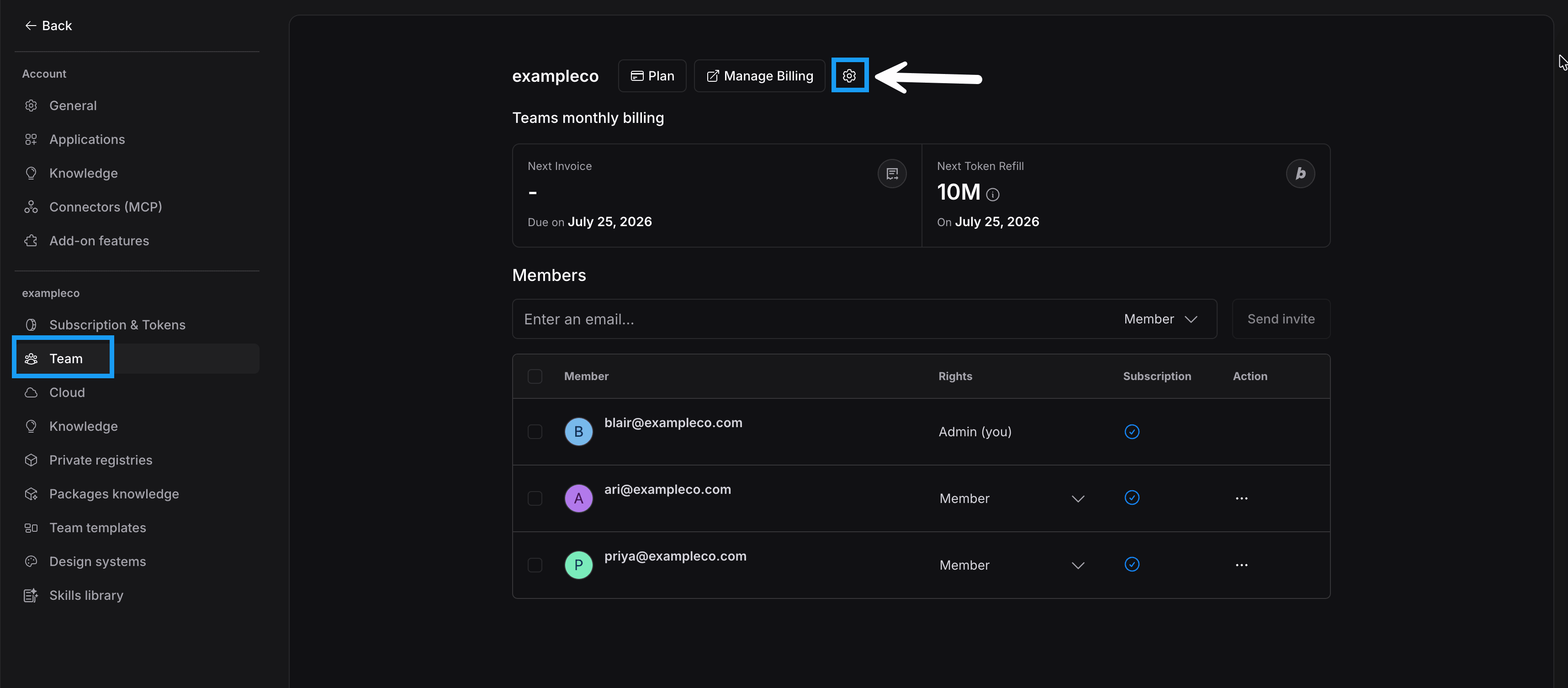
- At the top of the page, click the gear icon. The Team settings page opens. Click the arrow icon to return to the Team page, or use the left navigation menu to go to another page.
General
Default member role
Controls the default permission level members have on team projects. Default is Viewer. Options are Viewer, Editor, and Co-owner.
The access level you select here also sets the access level you see for your team in the Sharing menu. If you want individual team members to have a different level of access, see Invite individual collaborators by email.
The default member role is different from the team role you assign when you add a new team member. Admin, Billing Admin, and Member are the team roles you assign when you add someone to your team. Viewer, Editor, and Co-owner set the default permission level members have on team projects. To learn about team roles, see Manage your team.
Team-wide deploy provider
Controls which publishing provider team projects use. Default is User-specified. Options are User-specified, Netlify, and Bolt Cloud. Leave the default selected to allow team members to use Bolt hosting or connect Netlify if they prefer. To set a single default provider for your team, select Netlify or Bolt Cloud.
When a default publishing provider is set, team members can’t choose between providers in their project’s Domains & Hosting settings. Instead, they see their default provider listed along with a note advising them to contact their admin to request a change.
Published site visibility
Controls whether team members can choose their published site visibility. Default is User-specified. Leave the default selected to allow team members to publish their sites as either private or public. To set a single visibility option for all team projects, select either Private only or Public only.
When set to Private only or Public only, team members can’t edit the site visibility in the Publish menu.
Personal account restriction
Controls whether members of your team can use a personal workspace or create other teams. Default is off, which means that members are allowed to use a personal workspace or create a team using the same email address they use on the team.
Turn this setting on if you want to restrict team members from using their team email address to create a personal workspace or team of their own. For example, you may want to turn on this setting if your team works with sensitive data, and you want to prevent members from moving work into personal accounts.
External collaboration in team projects
Controls whether team members can invite users outside the team as collaborators. Default is off.
Turn this setting on to allow members to invite collaborators who have an email address outside your team.
Integration controls
Controls whether team members can integrate their projects with GitHub, Stripe, and Supabase. By default, each integration control is on, which means team members can use GitHub, Stripe, or Supabase in their projects. If you don’t want team members to integrate with any of these apps, turn off the setting for that app. This restricts access for the entire team.
Data export
Download your team’s usage data and a list of your team members.
Export usage data
Download a .CSV of your team’s plan usage, including message counts, tokens used, and projects created over the time range you choose. To learn how, see Export team usage data.
Export team members
Download a .CSV of your team members, including each member’s name, email, username, role, invitation status, subscription status, and last active date. To learn how, see Export team members.
Delete team
Deleting your team permanently deletes the team and all projects created within it. This action can’t be undone and affects all team members.
To learn how to delete your team, see Delete your team.