

Open your project settings
- From inside a project, click the gear icon in the top center of the screen, then click All project settings.
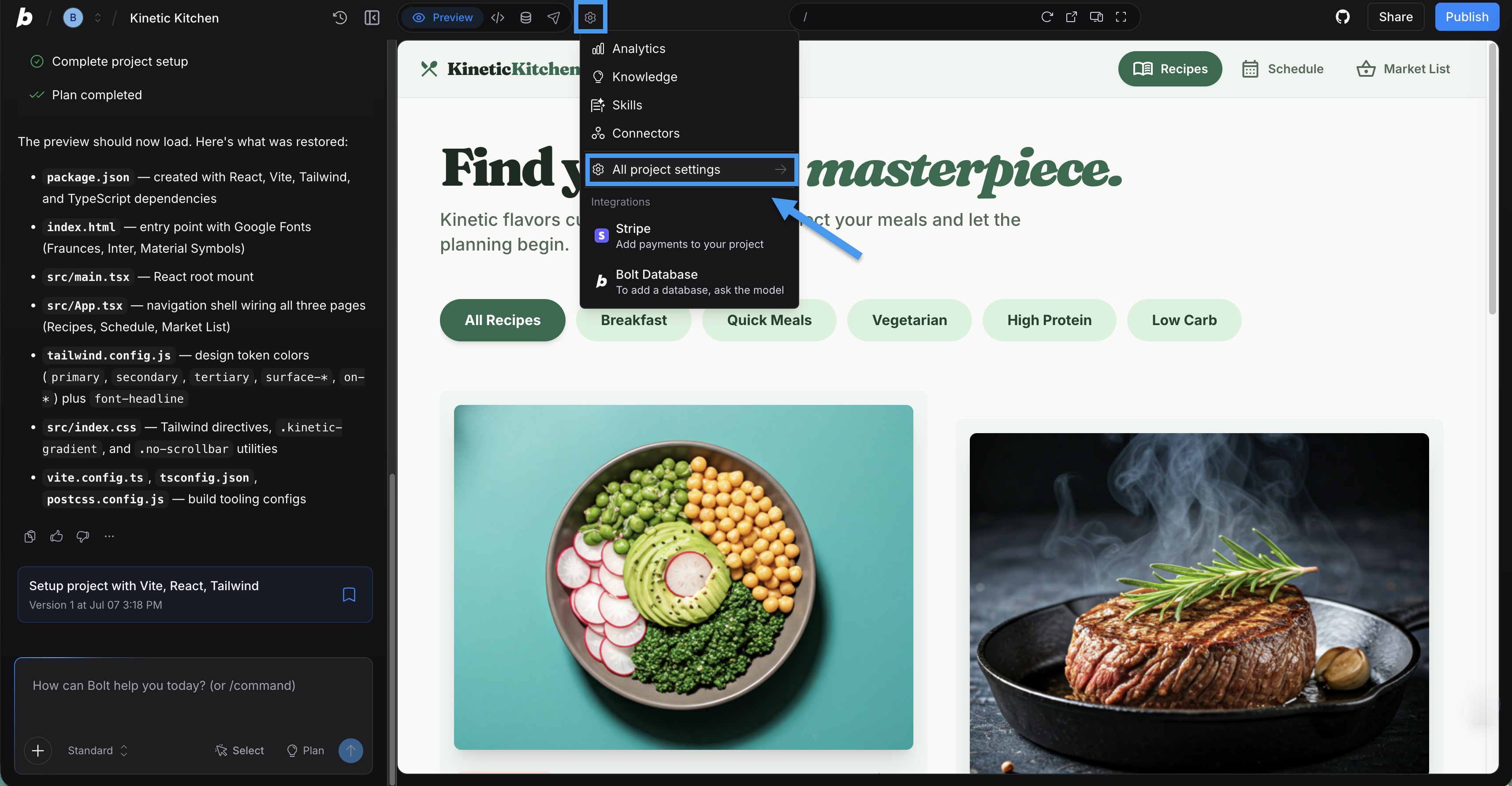
On mobile: From inside your project, tap your project’s name, and then tap Project settings. To open the General settings page, tap All project settings.
General
Rename your project and clear context.Project name
To rename your project:- In Project name, type a new name, then click Save.
Project agent
All projects use Bolt Agent. You can switch between the Standard and Max agent from the chatbox.Context
To clear Bolt’s short-term memory of your project:- Click Clear context.
Domains & Hosting
Edit your.bolt.host subdomain, buy or connect a custom domain, and unpublish your project.
Bolt subdomain
All projects are published by default at a free.bolt.host subdomain. Bolt creates a URL automatically when you publish your project, but you can change the portion of the URL that comes before .bolt.host.
To edit your Bolt subdomain:
- Click Edit domain (pencil icon).
- Enter a new subdomain, then click Save.
- Leave Republish after updating selected to make sure Bolt applies the new subdomain to your site right away.
Unpublish project
Before you begin, check whether your project is using a custom domain. If so, you have to disconnect the custom domain before you unpublish your site. After the site is unpublished, you can reconnect the domain at any time if you decide to publish again.
- Click Unpublish, then click Unpublish again.
Analytics
View your published site’s visitor and traffic data for a selected timeframe. To learn more, see Analytics.Knowledge
Add background instructions for Bolt to follow for a specific project. Project knowledge gives Bolt a reliable sense of context around goals, style expectations, terminology, constraints, and workflow habits. Instead of repeating these details in every prompt, add them in knowledge so the agent uses them automatically.Backups
Restore your project to an automatically saved backup. To restore from a backup:- Find the backup with the date and time you want.
- Click Load next to that backup.
- In the confirmation window, click Create Fork.