

Open your workspace settings
You can open your workspace settings from the Bolt homepage or from inside a project.- In the left sidebar, click your avatar, then click Settings.
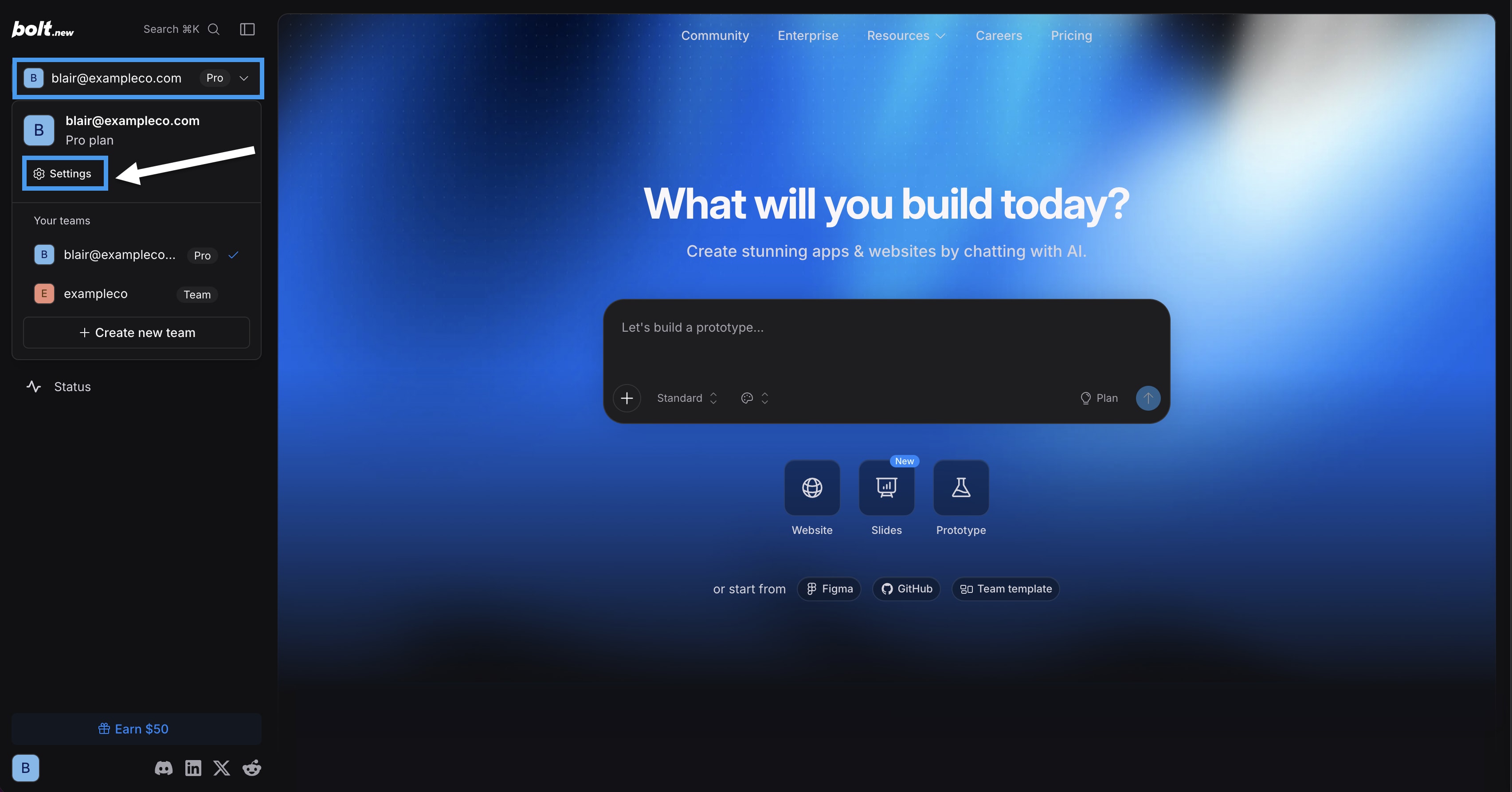
- In the left navigation menu, find your workspace settings. For individual accounts, they’re under the label
Workspace. For team accounts, they’re under the team name, likeexampleco.
Subscription & Tokens
Review your token and billing details, including current usage, remaining balance, and the date your tokens refresh. You can also upgrade your plan or adjust your billing settings. To learn more about related tasks, see Update your billing information, Download invoices, and Cancel a subscription.Cloud
View your included monthly usage for Bolt Cloud resources and manage custom domains you’ve purchased through Bolt.On a team account, the Cloud page is only available to team admins.
- Monthly usage: Lists your included monthly limits for resources such as databases, custom domains, web hosting requests and bandwidth, application file storage, and other limits.
- Custom domains: Lists the custom domains you’ve purchased through Bolt.
Team workspace settings
These settings are available for team workspaces. The Private registries and Packages knowledge pages are only available to team admins, but other settings in this section are available to all team members.Knowledge
Define team-wide context that applies to all projects created in the team.Team
Manage your team members, roles, and subscription. To learn more about related tasks, see Manage your team. If you’re a team admin, click the gear icon to open your team settings.Private registries
The Private registries page is only available to team admins.
- Get the registry URL and access token from your provider. Check your provider’s documentation for specific steps.
- On the Private registries page, click Add private registry.
- Add the following information:
- URL: The URL of your private registry.
- Token: The token used to access your registry.
- Scopes (optional): If you leave this field empty, all package installations for your team run through your private registry. If you provide a scope or scopes, only package installations for the selected scopes run through your private registry.
- Click Save new registry.
Bolt keeps registry credentials secure in your account settings and doesn’t create or update an .npmrc file. Team members need to manage their .npmrc files for local development.
Packages knowledge
The Packages knowledge page is only available to team admins.
- On the Packages knowledge page, click + Add package instructions.
- Enter the exact package name as it appears in
package.json. For example,acme/ui,react, orlodash. - Enter your instructions, then click Save new prompt.