

Select a UI element
Use Select to target a specific element in your app’s preview. The element is added to the chatbox to focus your prompt on that part of the interface. You can also test changes to UI text, formatting, spacing, and other changes in the preview before sending them for Bolt to code. To learn more about editing UI elements, see Make visual edits.Tag a project file or folder
To mention a project file or folder in your prompt, type the@ symbol to tag the resource. Bolt brings up a list of matching files and folders that filters as you type. Select a resource to insert its path into your prompt.
Use dictation
To talk to Bolt instead of typing, start dictation from the chatbox or use a keyboard or mouse shortcut. You can also combine dictation with typing in the same prompt.To record your prompt, Bolt needs access to your microphone. If your browser asks for permission, click Allow.
- In the chatbox, click Dictate (microphone icon). When you’re done, click Stop recording or press
ENTER. - On your keyboard, press and hold
CTRL+SHIFT+Dwhile you talk. When you’re done, release the keys. - With your mouse, right-click and hold while you talk. When you’re done, release the mouse button.
Automatically improve your prompts
Bolt helps you craft better prompts, which are key to building successfully.- In the chatbox, type your prompt.
- In the bottom-left corner of the chatbox, click the plus icon, then click Enhance prompt.
- In the Help us enhance your prompt dialog, answer each question to give Bolt more information about what you’re building.
- Bolt generates a recommended prompt, which you can edit.
Comparing original and enhanced prompt results
The image below compares two websites created with the same prompt. The version on the right was built with a simple prompt, while the version on the left was enhanced to produce a more engaging homepage and additional pages.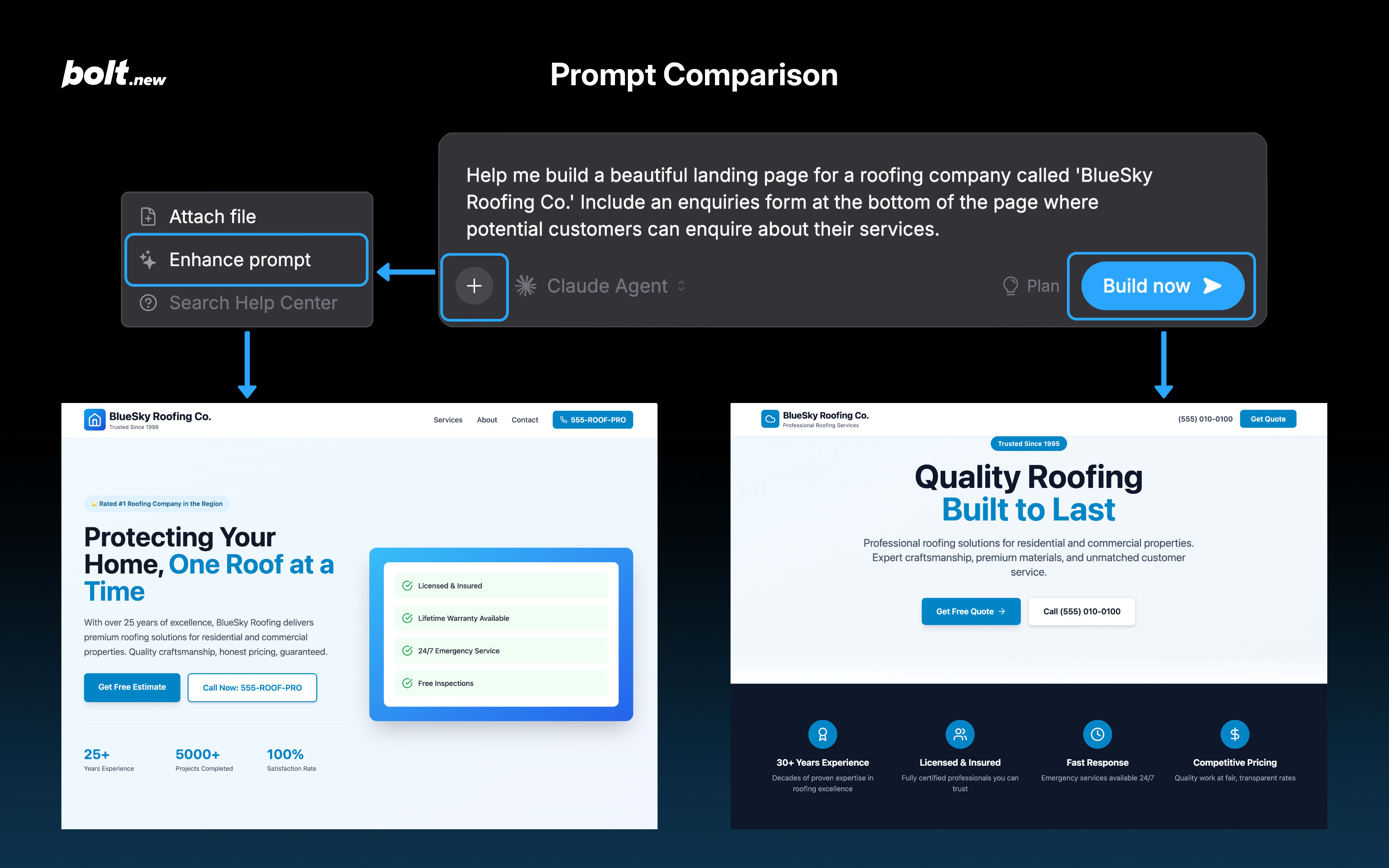
Queue prompts
You can send prompts while Bolt is building. Bolt adds them to a queue and works through them in order once the current prompt finishes. Each prompt starts with the finished result of the one before it, so Bolt is always building on your latest changes. You can queue up to 20 prompts, but you’ll only see the first 5 in the chat at a time. Scroll the list to see the rest. Each queued prompt keeps the agent you chose for it.Manage queued prompts
- Edit a queued prompt: Hover over the prompt, then click Edit message (pencil icon). Bolt won’t process the prompt while you’re editing, but other queued prompts continue in order.
- Reorder queued prompts: Click and drag a queued prompt (using the grip icon) to a new position in the list to change the order Bolt works through them.
- Delete a queued prompt: Hover over the prompt, then click Remove from queue (trash can icon). You can only delete prompts you queued yourself. Collaborators can’t delete each other’s prompts.
Collaborate with others in a single queue
In a shared project, each queued prompt shows an avatar for the person who sent it, so you and your collaborators can tell whose prompt is whose. If you close your tab while you have prompts in the queue, they stay in the queue and don’t block your collaborators’ prompts from processing.Pause the queue
Click Pause at any time to stop the queue from advancing. Bolt finishes the prompt it’s currently processing, but it won’t automatically start the next queued prompt. Click Resume when you’re ready for Bolt to continue. If you click Stop on the prompt Bolt is currently processing, this also pauses the whole queue until you resume it. Any new prompts you send while others are queued are added to the bottom of the list. If you need Bolt to work on a prompt immediately, pause the queue, drag that prompt to the top of the list, then resume. There’s no way to send a prompt that bypasses the queue.Restore a version with prompts queued
To roll back changes and restore a previous version of your project, use Version history.You can’t restore a previous version while Bolt is processing a prompt. If you don’t need the current changes, click Stop to cancel the prompt Bolt is processing. Otherwise, wait for it to finish before restoring a version.
- Pause the queue.
- In Version history, click the version you want to restore.
- When Bolt finishes restoring, resume the queue to continue building on that version.
Search the Help Center from the chatbox
You can search the entire Bolt Help Center without leaving your project by following these steps:- In the bottom-left corner of the chatbox, click the plus icon, then click Search Help Center.
- Enter your keywords, and a list of articles will appear.
- Click any topic to open it in a new tab.