

/$skill-name in the chat.
What’s the difference between skills and knowledge?
Skills only apply in certain situations (defined in the skill description), while knowledge applies to every prompt.
If you want Bolt to interact with an external tool (like getting information from Linear), you need a connector instead of a skill. Connectors give Bolt access to external tools and live data. To learn more, see Connect an MCP server.
Workspace, project, and Bolt-curated skills
Skills are available at the workspace level and the project level. You can add skills yourself or use built-in skills that Bolt manages for you.Workspace skills
Skills you add in Workspace > Skills library are available to turn on or off in individual projects.In a team workspace, this appears under your team’s name instead of the label Workspace.
Project skills
Skills you add in Project settings > Skills are stored in your project’s code. They’re always turned on. Skills available in your workspace can be on or off by default for each project, depending on the workspace type:- Personal workspaces: Skills are turned on by default in each project.
- Team workspaces: Admins add skills, and they’re turned off by default. Team members turn them on.
Bolt-curated skills
Bolt maintains a built-in set of skills you can turn on in your projects. Unlike skills you add, you can’t edit or remove Bolt-curated skills. Bolt-curated skills include:- SEO/GEO
- Skill Creator
- Web Design Guidelines
- Writing Guidelines
Go to your Skills settings
Workspace and project skills have their own settings where you add or manage available skills.Skills library (workspace)
You can open the Skills library from the Bolt homepage or from inside a project. To open the Skills library for your workspace:- In the top-left corner of the screen, click the account dropdown, then click Settings.
- In the left navigation, click Skills library.
Skills (project)
To open the Skills page for your project:- Open your Bolt project.
- In the top menu, click the gear icon, then click Skills.
Use skills safely
Before importing a skill, read the SKILL.md file completely so you know what instructions you’re giving Bolt. Only use skills from developers or organizations you know and trust, or that you’ve read through yourself and fully understand. If a skill contains URLs you don’t recognize, requests for sensitive information (like credentials or API keys), or instructions that change Bolt’s behavior outside the scope of the task, it might be unsafe. If anything looks off, don’t import the skill. Find another skill on the same topic, or write one yourself.Add a skill
Before you add a skill, decide where it should live. If you want it available for every project, add it to your workspace. If you only need it in one project, add it directly to that project. There are a few different ways to add skills. The following table shows where each method is available.- To add a workspace skill, open the Skills library.
- To add a project skill, open your project’s Skills page or start chatting with Bolt.
Import skills from GitHub
You can import skills from GitHub into a workspace or project.- Open the Skills library or your project’s Skills page.
- Click Add skill, then click From GitHub.
- For each skill you want to import:
- In Repository URL, enter a public GitHub repository. Bolt automatically finds skills in the repo.
- In the Skill folder name field, select the skill you want to import. If the repo contains a large number of skills, Bolt shows the first 100.
- Click Create. When Bolt finishes importing a skill, you’ll see it listed among your available skills. If you added it from the Skills library, it shows under In your workspace. If you added it from your project’s Skills page, it shows under In this project.
Imported GitHub skills can be up to 2 MB in size.
Import from a file
You can import skills from a file into a workspace or project. Skills files must use a.md or .mdx file extension, or a .zip file containing .md or .mdx files.
A .zip file can only contain one skill file, but you can include other Markdown files with examples for Bolt to reference when applying the skill.
To import a skill from a file:
- Open the Skills library or your project’s Skills page.
- Click Add skill, then click Import from file.
- Choose the
.md,.mdx, or.zipfile you want, then click Import.
Individual
.md or .mdx files can be up to 256 KB in size. .zip files can be up to 2 MB in size, including a 256 KB limit for the included skills file.Write instructions manually
In team workspaces, only admins can write a skill to the workspace library. Any team member can write a skill directly in a project. For help writing an effective skill, including examples of each part, see Skills file requirements. To write a skill in Bolt:- Open the Skills library or your project’s Skills page.
- Click Add skill, then click Write manually.
- Fill out the different parts of the skill:
- Skill name: Add a unique name in the format
your-skill-name. - Description: Describe what the skill does and when Bolt should use it.
- Instructions: The complete instructions to define what the skill does.
- Skill name: Add a unique name in the format
- Click Create.
Skills you write can be up to 256 KB in size.
Create a skill from chat
Bolt has a built-in/skill-creator skill it can use to write a skill for you. If you have a workflow in mind, describe it and ask Bolt to create it as a skill. You can also ask Bolt to create a skill based on the work you’ve done in chat. If you discover a great workflow while building, this lets you save and reuse it later.
To create a skill from chat, do one of the following:
- In the chatbox, send a prompt describing the skill you want.
- In your project’s Skills page, click Add skill > Build with Bolt.
Turn skills on or off in a project
When a skill is turned on, Bolt applies it automatically when your prompt matches the skill’s description, and you can apply it by typing/$skill-name in the chat. There’s no limit to how many skills you can turn on in a project.
Skills have to be turned on for Bolt to use them. If you turn off a skill, you can’t select it in that project, and Bolt won’t automatically apply it, either.
You can turn workspace skills on or off per project so that only skills that fit the project get applied. Skills you add to a project or create from chat are always on for that project. If your project is shared, skills you turn on are available to all collaborators working in the project.
To turn a skill on or off in a project:
- Open your Bolt project.
- In the top menu, click the gear icon, then click Skills.
- Find the skill you want, then turn it on or off.
Apply a skill manually in the chat
There are two ways to apply a skill in chat:- Select the skill by clicking the plus icon then pointing to Skills to show the available skills in your project.
- Type the skill name using a slash command.
Pick from the Skills menu
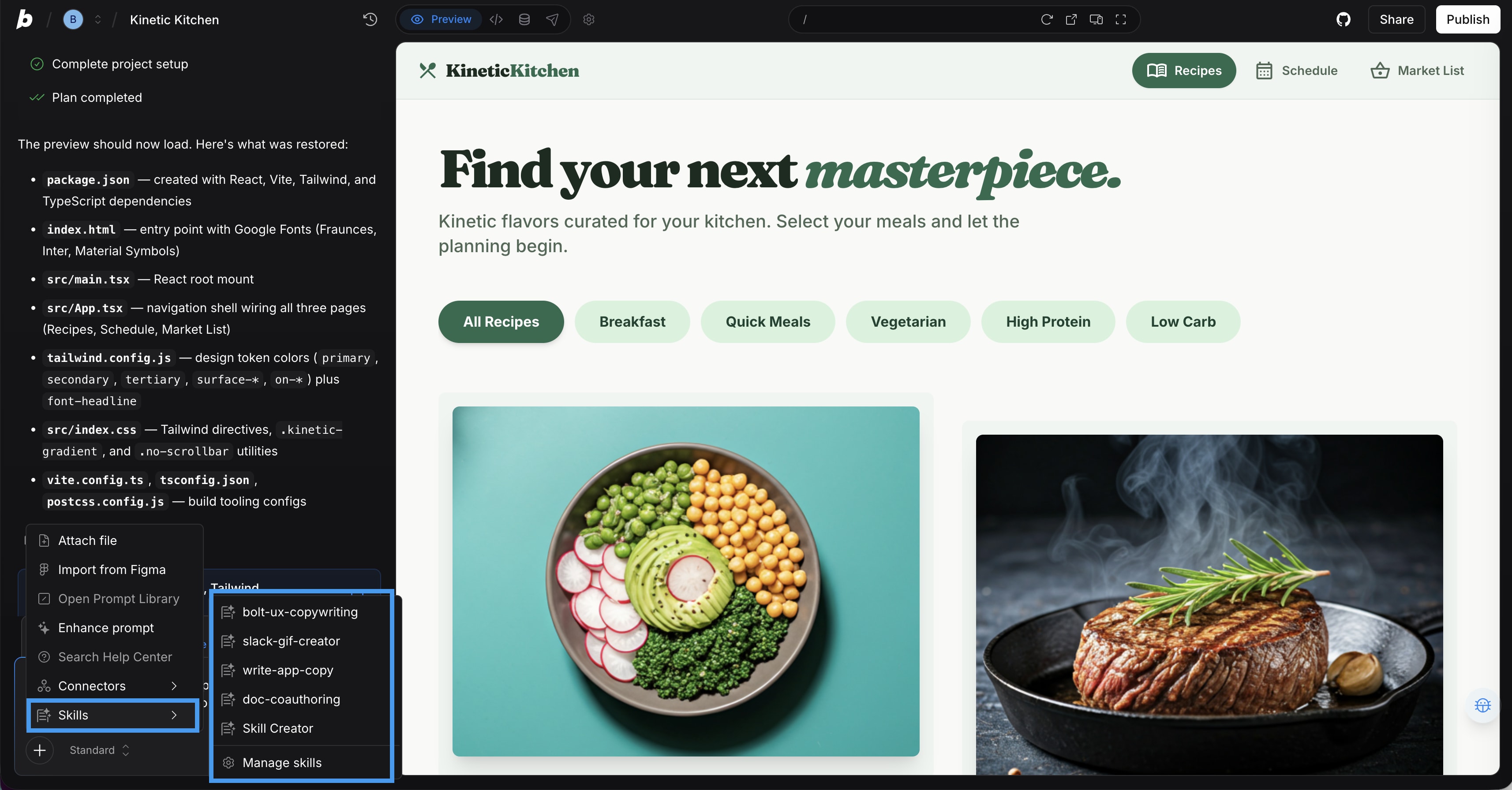
- In the chatbox, click the plus icon.
- Click Skills. A list appears that shows skills available in your project.
- Click the skill name to insert it into the chatbox.
Type the skill name

-
In the chatbox, type
/$skill-name. For example,/write-app-copy. As you type, a menu opens showing the skills available in that project. - Hover over a skill to see its name and description.
- Click the skill you want to apply.
Apply a skill to your first prompt
To use a skill in your first prompt, you have to pick from the Skills menu in the chatbox on the Bolt homepage. You can choose from any skill in your workspace, including Bolt-curated skills. The skill you choose stays turned on for the project afterward.Manage skills
Click the three dots icon next to a skill to access the following options:- Update from GitHub: Available for skills imported from GitHub. To learn more, see Update a skill from GitHub.
- Edit: Edit the skill’s name, description, or instructions.
- Add to Skill library: Available for project skills. To learn more, see Add a project skill to your workspace.
- Download: Download the skill file to your computer.
- Remove: Remove the skill.
Update a skill from GitHub
Skills you import from GitHub stay linked to their folder in the source repository, but they don’t update automatically. To get the latest changes to the skill in GitHub, update your copy in Bolt. To update a skill from GitHub:- Open the Skills library, or open Project settings > Skills for a project skill.
- Click the three dots icon next to the skill’s name.
- Click Update from GitHub.
If the skill you updated is a workspace skill, and you’d turned it off in some projects, you may notice that the skill turns back on after the update. If you don’t want it to be used in those projects, turn it off again for each one using the project-level skills setting.
Edit a skill
- Open the Skills library, or open Project settings > Skills for a project skill.
- Click the three dots icon next to the skill’s name.
- Click Edit.
- Make your changes, then click Save.
Add a project skill to your workspace
If you write a skill in one project and want to reuse it elsewhere, you can add it to your workspace’s Skills library so it’s available to turn on in other projects. In a personal workspace, you can add any project skill to your workspace. In a team workspace, only a team admin can add a project skill to the Skills library, but team members can download the skill and share it with an admin. To add a project skill to your workspace:- In the project’s Skills page, find the skill you want to add, then click the three dots icon next to the skill’s name.
- Click Add to Skill library.
If the same skill exists in a project and workspace, Bolt uses the project skill.
Download a project skill
If you don’t have permission to add a skill to the Skills library, or you want to share it outside Bolt, you can download it as a file. To download a project skill:- In the project’s Skills page, find the skill you want, then click the three dots icon next to the skill’s name.
- Click Download.
SKILL.md file to your computer. You can share it with a workspace admin, or import it into a workspace or another project yourself.
Permissions in team workspaces
- Admins can add, edit, download, update from GitHub, and remove skills in their team workspace. When a skill is removed, it’s removed for all team members and from their projects.
- Team members can view workspace skills and turn them on or off per project. Members can’t add workspace skills but can add skills in a project and edit, download, and remove any skills they’ve added.
Duplicate or transfer a project that uses skills
When you duplicate a project, the duplicate stays in the same workspace, so all the same skills are available. When you transfer a project, only skills added directly to the project move with it. Workspace skills don’t transfer because they belong to the workspace, not the project.Delete a project that uses skills
Project skills are stored in the project’s code, so deleting the project deletes the skill along with it. To keep a project skill, add it to your workspace’s Skills library or download it before you delete the project. Deleting a project doesn’t affect workspace skills, since those are stored separately from any one project’s code.Skills file requirements
Every skills file needs two parts:- A frontmatter section, which needs entries for
nameanddescription - Instructions, which define the rules or workflow you want Bolt to apply
Frontmatter
A clear, specificdescription is important in making sure Bolt applies your skill in the right situations. Start with “Use when” and write the description to include a trigger, scope, and boundary:
- Trigger: The situations when Bolt should apply the skill. For example, “Use when writing or editing any text that appears in an app’s interface.”
- Scope: Specific examples when the skill applies. For example, “Covers button labels, calls to action, headings, and empty states.”
- Boundary: Specific examples when the skill doesn’t apply. This helps distinguish between similar skills and prevents Bolt from using the skill where it isn’t relevant. For example, “Doesn’t apply to placeholder content or sample user data like names or emails.”
If you write the skill yourself, Bolt helps you observe these rules. For example, Bolt automatically changes any spaces, underscores, or capital letters you enter in the Skill Name field so they fit the frontmatter requirements. That’s why you’ll notice all skill names you write in Bolt follow the format
your-skill-name.
Instructions
Instructions define the rules, guidelines, and workflows you want Bolt to follow when applying your skill. Follow these tips to write an effective skill:- Cover one topic per skill. Skills work best when they focus on a specific, well-defined topic. If you find yourself writing sections that feel unrelated, consider splitting them into separate skills.
- Write in plain language. Use short, clear sentences. Avoid jargon and unnecessary detail.
- Use headings to separate distinct subtopics. If your skill covers more than one aspect of a topic, headings help Bolt apply the right section to the right situation.
Troubleshooting
Skill doesn’t apply automatically
If Bolt doesn’t apply a skill automatically when you expect it to, try rewording your prompt to match the skill’s description more closely, or apply it manually in the chat. A skill applies automatically when it’s turned on for the current project and your prompt closely matches the trigger, scope, and boundary described in the skill’s description. See Skills file requirements for tips on writing a clearer description.The Update from GitHub option is missing
The Update from GitHub option isn’t available if the skill was edited, if it’s a project skill imported before GitHub updates were added, or if it was imported from a file rather than from GitHub. Import the skill again to get a linked copy you can update.Update from GitHub doesn’t work
Try the following tips, depending on why the update failed:- If the skill was renamed, and another skill with that name already exists, rename or remove the conflicting skill, then try the update again.
- If the repository became private or the skill folder was deleted, the skill keeps working as it did when you imported it, but you can’t update it. To update the skill, you’d have to make the repository public again.
FAQs
Can I use skills I wrote for other tools in Bolt?
Can I use skills I wrote for other tools in Bolt?
Bolt skills use an open format shared by other AI tools, so you can bring in a skill you built somewhere else by importing from GitHub or importing from a file.
Can skills reference each other?
Can skills reference each other?
Bolt looks at all the skills available in a project and applies the ones that are relevant to your prompt. Skills can’t directly reference each other, but Bolt can apply multiple skills independently to the same task.
How will I know which skills Bolt applied?
How will I know which skills Bolt applied?
When a skill is triggered, the name shows in the chat, so you can see which skills have been applied to the current response. If Bolt applies more than one skill, you may have to expand the actions taken menu in the chat to see the individual skill names.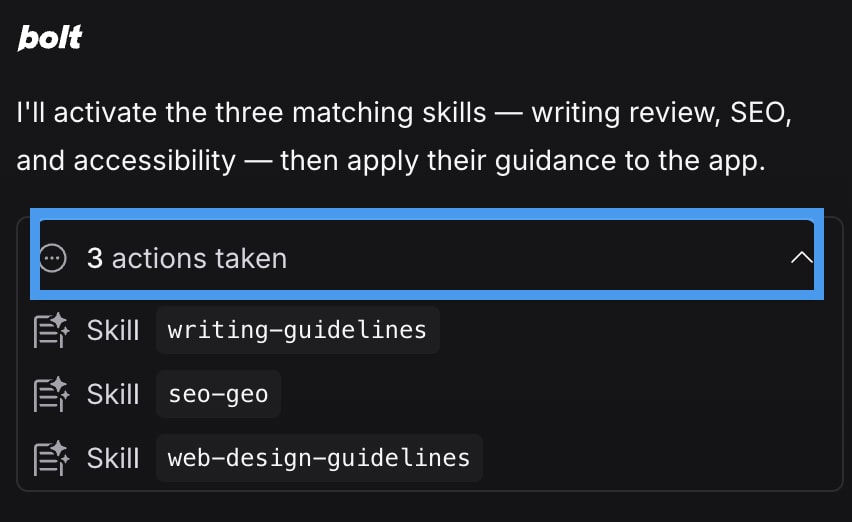
What happens if two skills give conflicting information?
What happens if two skills give conflicting information?
Bolt looks at all the skills available in a project and applies the ones that are relevant to your prompt. We recommend that you keep skills focused and avoid having multiple skills with conflicting information that can apply to the same workflow. To learn more about writing a skill, see Skills file requirements.
Does turning on more skills use more tokens?
Does turning on more skills use more tokens?
The number of skills you have turned on shouldn’t meaningfully affect how many tokens Bolt uses. When a skill is turned on, Bolt only looks at its name and description until you send a prompt that matches the skill. Then, it uses tokens to read the skill’s full instructions so it can apply the skill.
If multiple teammates edit the same skill, which version will Bolt use?
If multiple teammates edit the same skill, which version will Bolt use?
In a team workspace, only admins can edit skills. The latest saved edit becomes the current version for everyone. If you need version control for your skills file, keep the skill in GitHub and use Update from GitHub instead of editing it in Bolt.