

On mobile: Each time Bolt finishes a build, a preview card appears in your chat. Tap the card to open your preview in full screen, and tap Back to chat to return.
Preview controls
These controls appear above the preview for all projects:- Reload: Refreshes the preview.
- Responsive mode: Shows how your app looks on different devices and screen sizes.
- More preview controls (…): Opens a menu with Preview theme, Open in new window, and Full screen.
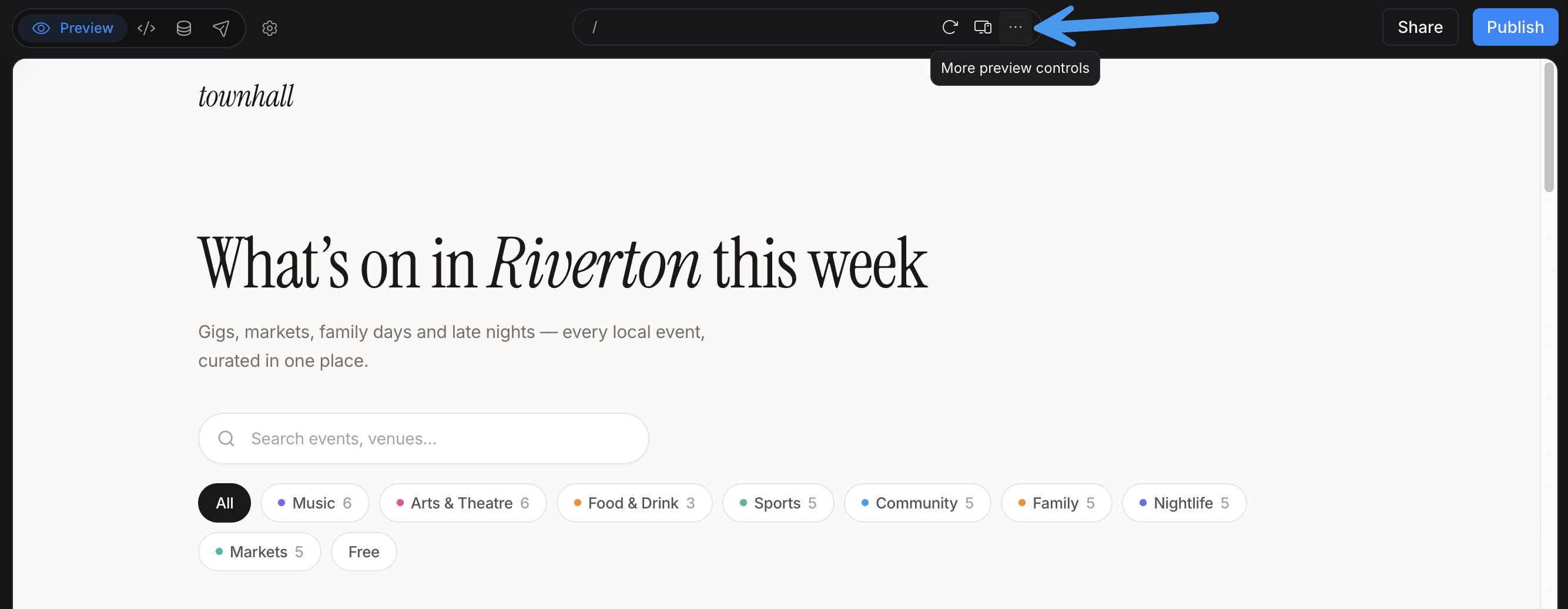
- Device Preview: Lets you test your app on your phone with Expo Go. To learn more, see Quick testing with Expo Go.
Change the preview theme
If your project has both a light and dark theme, you can switch between them. By default, your project uses the same theme as your device. To view your project with a different theme:- Above the preview, click More preview controls (…).
- Click Preview theme.
-
Choose from the following options:
- System: Default. The preview follows your device’s light or dark setting.
- Light: The preview uses your project’s light theme.
- Dark: The preview uses your project’s dark theme.

Preview theme only changes the preview for your project. It doesn’t change Bolt’s theme, which you set in your account settings.
Open the preview in a new window or full screen
To view your preview in a larger space:- Above the preview, click More preview controls (…).
- Click one of the following:
- Open in new window: Opens the preview in a separate browser window.
- Full screen: Expands the preview to fill your screen.