- Know exactly what needs to be changed and want to edit it yourself rather than prompting Bolt. Editing in Code view doesn’t use tokens.
- Want to understand how your project is built.
- Need to find, rename, move, or delete a specific file.
If you’re using Bolt in Safari or on a mobile device, Code view is read-only and the terminal isn’t available. You can still open and look through your files, but you’ll need to prompt Bolt to make any changes.To edit your code files directly or use the terminal, open your project in Chrome or another Chromium-based browser on a laptop or desktop.
Open Code view
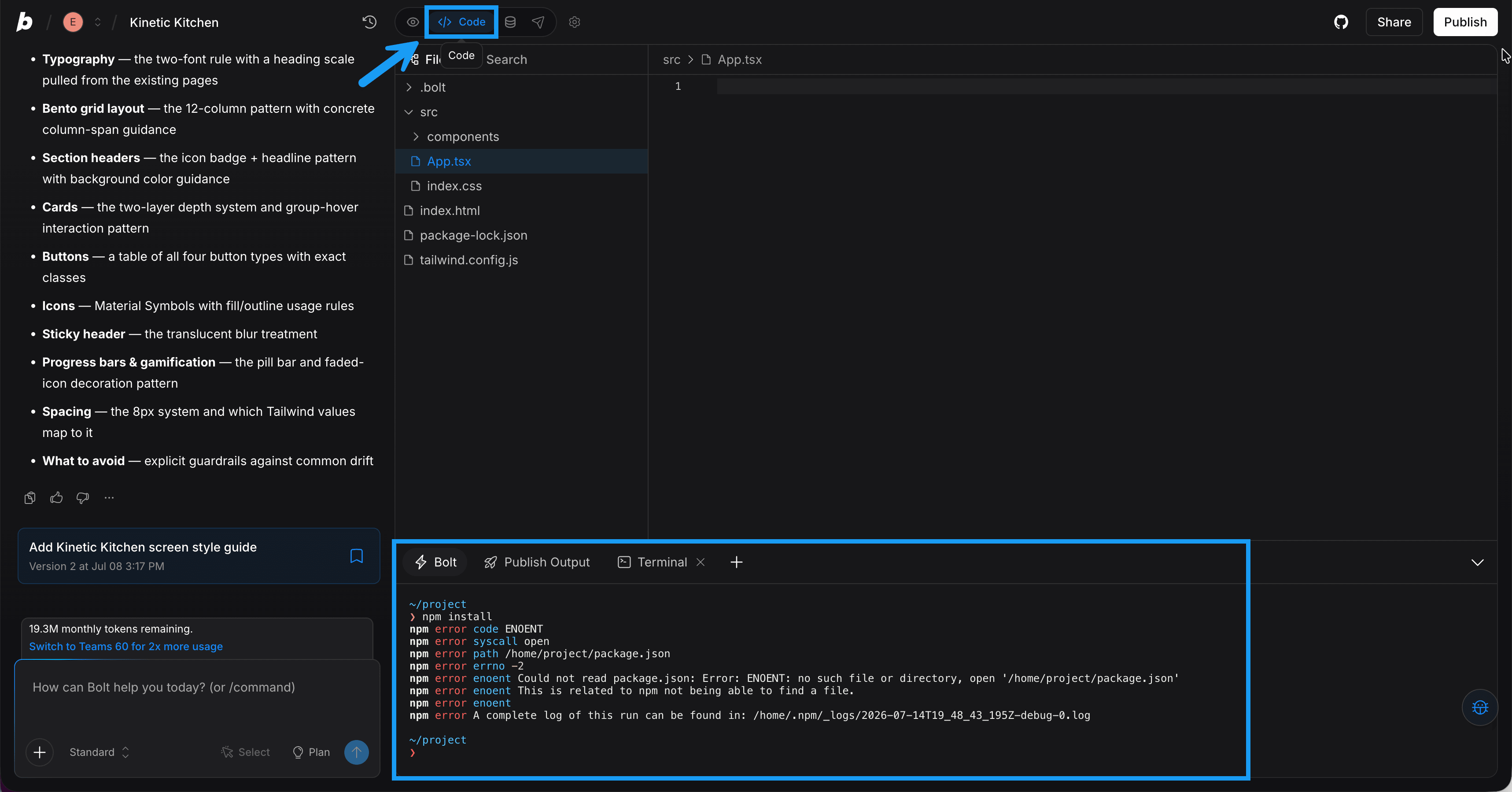
By default, your Bolt project shows your chat and a preview of your app. To see your files, click the code icon (<>) in the top center of your screen. Your project’s files appear in the Files list. Click a folder to expand it, or click a file to open it in the editor.Edit a file
- In the Files list, click the file you want to edit.
- Make your changes in the editor.
- Click Save, or press Cmd+S (Mac) or Ctrl+S (Windows). Bolt builds your changes automatically.
- Switch back to Preview to see your changes.
Manage files and folders
To create, rename, move, or delete files and folders, right-click in the Files list. The options you see depend on where you right-click:- A file or folder: Shows all the options for that item.
- Empty space in the list: Shows options for your project’s top-level folder, such as creating a new file there.
Create a file or folder
- In the Files list, right-click the folder where you want the new file or folder to go. To add it to the top level of your project, right-click empty space in the list.
- Click New file or New folder.
- Enter a name, then press Enter.
Rename a file or folder
- In the Files list, right-click the file or folder.
- Click Rename.
- Enter the new name, then press Enter.
Move or duplicate files
- In the Files list, right-click the file or folder.
- Click Cut to move it, or Copy to duplicate it.
- Right-click the folder where you want it to go.
- Click Paste.
Copy a file’s path
A file’s path tells Bolt the location of a specific file. Paste it into a prompt when you want to directly identify a file for Bolt to use or change. For example:Use public/hero-image.png for the header image.
- In the Files list, right-click the file.
- Click Copy relative path.
- Paste the path into your prompt.
src/App.tsx. This is the path most prompts need. Copy path gives the full path, such as /home/project/src/App.tsx.
Delete a file or folder
Bolt deletes files and folders right away, without asking you to confirm. Deleting a folder also deletes everything inside it.- In the Files list, right-click the file or folder.
- Click Delete.
Select multiple files
You can select several files and folders, then move, duplicate, or delete them all at the same time.- In the Files list, select the files and folders you want:
- To select items one at a time, hold Cmd (Mac) or Ctrl (Windows) and click each one.
- To select everything between two items, click the first item, then hold Shift and click the last one.
- Right-click any of the selected items.
- Click the option you want. It applies to everything you selected.
Ask Bolt about specific code
You’ll get more accurate results if you’re explicit about which code Bolt should change. To ask about or change a specific section of code:- Open a Bolt project.
- Click the code icon (<>) in the top center of your screen to switch to Code view.
- Highlight the code you want to discuss or change.
- Click the Ask Bolt button (if the button doesn’t appear immediately, try right-clicking). Bolt links the selection in the prompt box.
- Enter your question or request.
Troubleshoot file actions
”This file path is too long”
Bolt shows this message when you try to create, rename, or upload a file with a name or path that’s too long. The path takes into account the file name and the name of the folder or folders it’s in. Make the file or folder name shorter, then try again.”Enter a name for this file”
Bolt shows this message if you press Enter without typing a name. Enter a name, or press Esc to cancel.Get back a file you deleted
Bolt doesn’t have an undo option for deleted files. Try these options first, because they bring back only the file you deleted:- If your project is connected to GitHub, copy the file from your repository. To learn more, see GitHub.
- If you downloaded a copy of your project, copy the file from that download. To learn more, see Export a local copy of your project.
- If you remember what the file did, ask Bolt to recreate it, but be aware it might not be exactly the same as the original.
Use the terminal
The terminal is a place in your Bolt project where you can type text commands and view the output of Bolt’s processing. It’s built into Bolt and runs in your browser, inside your project. Running a command in the terminal doesn’t use tokens. Using the terminal isn’t required to build with Bolt, but it can help you troubleshoot. If you’re having an issue with your project, errors in the terminal can give Bolt specific information to fix the problem. The terminal isn’t available in Safari. To use it, open your project in Chrome or another Chromium-based browser.Bolt’s terminal is different from the Terminal or Command Prompt app on your computer. To run a command in your Bolt project, use the Terminal tab in Bolt. Commands you run on your computer don’t reach your Bolt project.
- Bolt: Shows the commands Bolt runs in the background to set up your project and keep your app running. You might check this tab if your preview isn’t loading or if Bolt seems stuck.
- Publish Output: Shows the output from publishing your project. You might check this tab if you’re having trouble publishing your project.
- Terminal: Shows your own commands and their results.
Open the terminal
- Open Code view.
- In the bottom panel, find the Bolt, Publish Output, and Terminal tabs.

Run a command
Before you run a command, wait until Bolt finishes responding to your latest prompt. Running a command while Bolt is still working can interfere with the changes it’s making.- Open the terminal.
- In the bottom panel, click the Terminal tab.
- Click inside the terminal area.
- Paste or type the command you want to run.
- Press Enter.
- Wait for the command to finish. When it’s done, the text stops changing and a new line appears where you can type again.
Find error messages and other output in the terminal
The terminal’s output area shows the results of Bolt’s processing and of commands you run. If an error occurs, the details appear here too. Sharing the exact error with Bolt or Bolt’s support team gives a more precise picture of what went wrong.-
In the terminal, check the output on these tabs:
- Bolt: for preview and other project issues.
- Publish Output: for publishing issues.
error. - Select and copy the error details.
- Paste the details into the chat and ask Bolt to fix the problem, or paste them into your message to support.