

View Advanced settings
To open the advanced settings for your project’s database: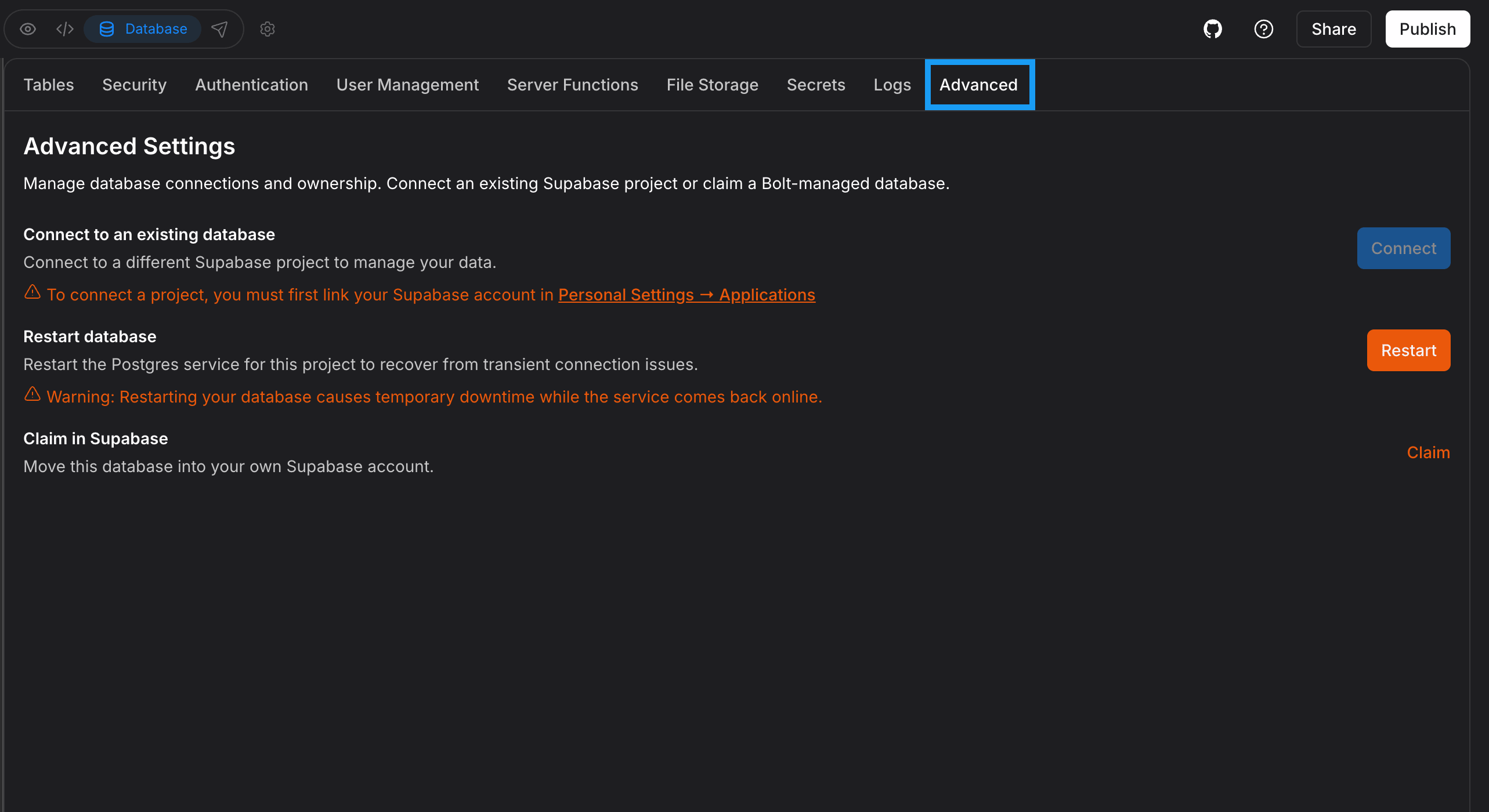
- Log in to your Bolt project.
- Click the database icon in the top center of your screen.
- In your database settings, click the Advanced tab.
Who can change advanced settings
Connecting a Supabase database, restarting your database, and claiming a Bolt Database in Supabase are limited to certain roles. The following roles have access:- Individual account: Project owner only.
- Team account: Project owner, Co-owners, and team Admins have access. Editors and Viewers don’t.
Connect to a Supabase database
To connect an existing or new Supabase database instead of using a Bolt database, see Connect a Supabase database for instructions. Connecting a Supabase database requires a Pro or Teams plan.Disconnect your database
This option is available only if you connected a Supabase database to your project. It’s not available for Bolt databases.
- In your Bolt project, click the database icon in the top center of your screen.
- Click Advanced.
- Click Disconnect.
- Click Yes, disconnect to confirm.
Restart your database
If Bolt reports that your database is unresponsive, timing out, or having connection issues, you can restart the database to try to restore the connection. To restart your database:- In your Bolt project, click the database icon in the top center of your screen.
- Click Advanced.
- Click Restart.