

Security Audit, but it checks only your database, not your whole project. To check your whole project, including its code, see Check your project’s security.
View Security settings
To open the security settings for your project’s database, follow these steps: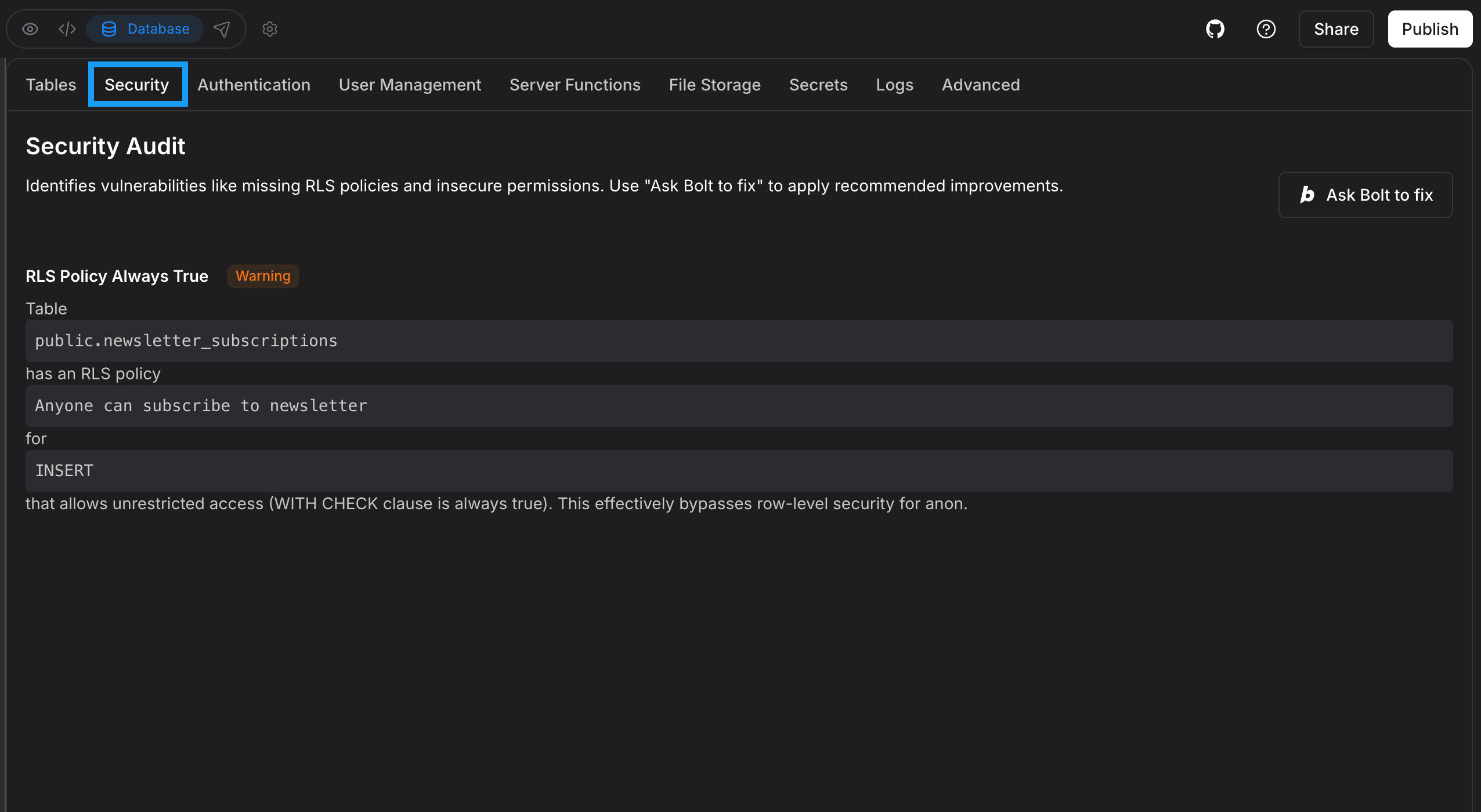
- Log in to your Bolt project.
- In the top center of your screen, click the database icon.
- Click Security.
Fix security issues
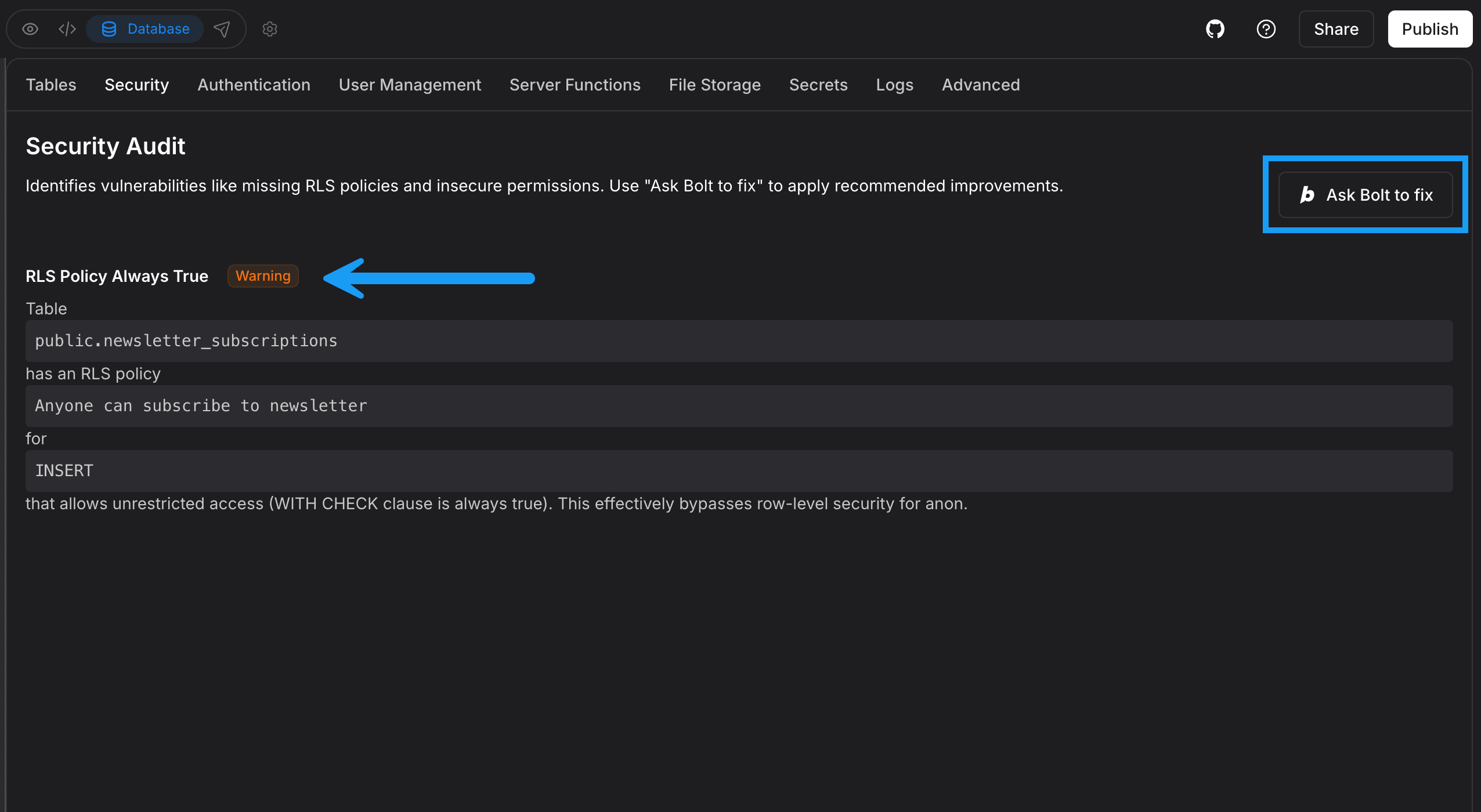
Any database security issues Bolt identifies appear on theSecurity Audit page. In the example screenshot below, the RLS Policy Always True warning shows:
- Function Search Path Mutable
- Leaked Password Protection Disabled
If you see this warning, the Prevent Leaked Passwords setting is turned off for your database. It’s on by default for Bolt databases, so this usually means it was turned off or your database is managed in Supabase using a free Supabase plan, where the setting isn’t available. To learn more, see Leaked Password Protection.
How Bolt finds security issues
The Security tab uses the same database checks as the Security Advisor in Supabase, a built-in security review that Supabase provides. Each warning that appears on the Security tab shows:- A title and description from the database checks. You can learn more about specific warnings in the Supabase advisors documentation.
- A label with one of three levels: Error, Warning, or Info. Bolt lists the most serious issues first.
Resolve RLS warnings
Some security warnings relate to row-level security (RLS), which controls who can access your data. The following sections explain RLS and how to resolve warnings related to it.Understand row-level security (RLS)
Your database stores information in tables, which are collections of related records, like a spreadsheet. For example, one table might hold all of your site’s orders, with each order stored in one row. Anyone who visits your site can send requests to your database directly, without using your site’s screens. To control what those requests can do, your database uses row-level security (RLS), a database feature that decides which rows a request can read or change. When RLS is on, rules called policies say who can access which rows. To keep your data secure:- Check that every table has RLS turned on. Bolt turns on RLS for the tables it creates. If you add any tables in the database, make sure RLS is turned on for those, too. A table without RLS can be read and changed by anyone.
- Limit each policy to the rows a user should be able to access. For example, a policy can allow people to see only the rows they created.
RLS policies on sites without sign-in
If you haven’t asked Bolt to add sign-in to your site, Bolt might write policies that allow any visitor to view, add, change, and delete the data in your database. The Security tab flags these policies with theRLS Policy Always True warning, which means a policy has no conditions that limit who can access a row. Bolt runs the same scan on every project, so it flags this even when public access is what you want. The warning is acceptable only if you’re comfortable with every visitor being able to change or delete that data.
To limit what visitors can do, decide which of these options fits the data in each table, then ask Bolt to update the policies to match:
- Visitors can only view the data. This fits content that anyone can read, like a portfolio, a menu, or blog posts. Visitors can read this data but not add, change, or delete it.
- Visitors can submit information. This fits contact forms, sign-ups, and reviews. Visitors can add this data but not read, change, or delete data that other people submitted.
- The data needs to stay private. This fits data like customer orders or messages. To keep data private, add sign-in to your site.
Add sign-in to protect private data
Policies can limit data to specific people only when your site knows who each visitor is. To set this up:- Ask Bolt to add a sign-in form. You can add it to your whole site or only to the pages that hold private data, like orders, messages, or account details.
- Choose how people sign in, for example with an email address or a Google account. For options, see Database authentication settings.
- Ask Bolt to update your policies so only signed-in people can access the private data.