

What Bolt Database includes
- Unlimited databases: There’s no limit to how many databases you can create.
- No manual setup: You don’t configure servers or hosting. Bolt handles it for you.
- Authentication settings: Manage sign-in options for your app.
- One place for monitoring: Keep track of security and logs without switching tools.
- Connections to other tools: Connect external tools later for advanced control.
Creating and using databases
Bolt creates a database automatically if your project needs one, or if you explicitly ask Bolt to create a database or a database-related feature. You don’t need to set anything up manually. For example, if you create a trivia app, Bolt sets up a database to store questions and answers.Ask Bolt not to create a database
If you don’t want Bolt to provision a database, you can explicitly request that it not do so. For example, when submitting a prompt, add the instruction:Don't use a database, I want to use local storage for this app.
Use Supabase instead of Bolt database
If you’re on a Pro or Teams plan and prefer to use Supabase when creating a new project, you can select it during setup. There’s currently no supported way to migrate an existing Bolt database to Supabase. If you want to use Supabase, you need to choose it when you start a new project.Add login and sign-up to your app
Features like user authentication may not be added automatically, but you can prompt Bolt to include sign-up and log-in if your app requires them. For example:Create user accounts via email signup and login, then add account sign in/log out buttons in the top right corner of the home page.
Once your app has a login screen, see Authentication to configure settings like email confirmation, password reset, and Google sign-in.
Key database topics
Most of these topics are sections in your database settings menu, shown below. The others cover related features and troubleshooting.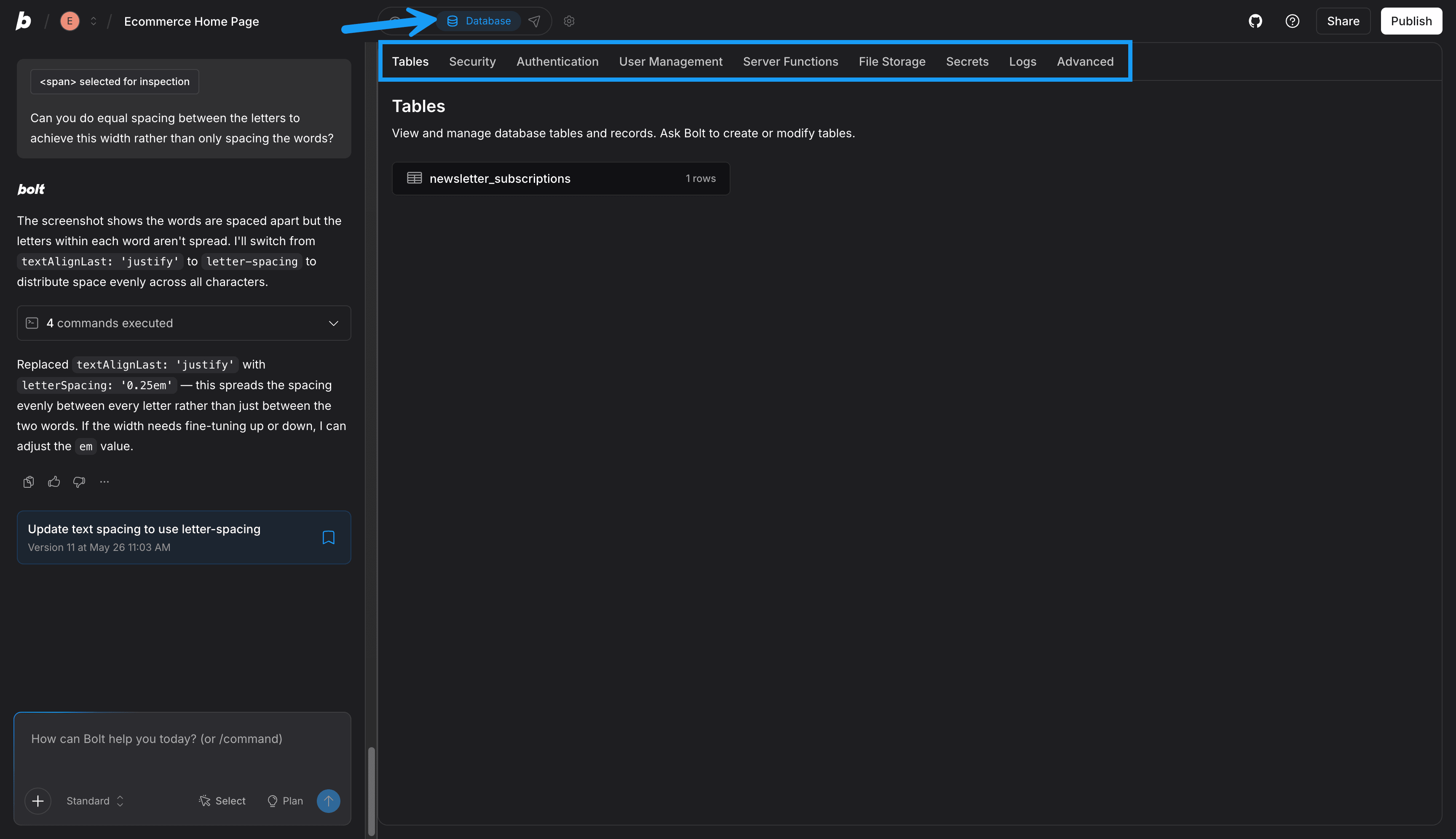
Data and files
- Tables: View and manage the rows in your tables. You can add, filter, query, delete, and export row data.
- File storage: View your file storage buckets and check which are public or private. This page also lists the file types Bolt supports.
- User management: View the users who signed up for your app, invite users by email, or add them manually.
Sign-in and email
- Authentication: Set up email and Google sign-in, and configure password reset and email templates.
- Send emails from your app: Send transactional and authentication emails by connecting an email provider.
Backend and credentials
- Server functions: View your server functions and their logs, and delete the ones you no longer need.
- Secrets: Manage the keys, passwords, and other credentials that Bolt needs to connect your project to outside services.
Monitoring and security
- Logs: Monitor and debug your app with logs for server functions, authentication, PostgreSQL, storage, and more.
- Security Audit: Check your database for security issues, such as an open permission or a missing RLS policy, and ask Bolt to fix what it finds. This checks your database only, not your whole project.
Advanced settings and troubleshooting
- Advanced settings: Restart an unresponsive database, connect to Supabase instead, or claim your database into your own Supabase account.
- Database issues: Fix a database that isn’t responding.
Automatically paused databases
In unpublished projects, if your database has low usage for six days or more, Bolt may automatically pause it to conserve resources. In most cases, a few user requests to the database each day is enough activity to keep the database from being paused. If your database is paused, you’ll see the following message the next time you open your project:Restoring your paused database. Your Bolt Database is paused due to inactivity and is now being restored. This may take a few minutes.
This is a routine process. After the database is restored, you can continue building your project.
If you’ve published your project to a live site, your database won’t be paused. Automatic pausing only happens in unpublished projects.
View Bolt Database limits
You can view database-related limits on the Cloud settings page. Your Cloud settings appear in a different location depending on your plan. For individual accounts, Cloud is under your Account settings. For Teams accounts, it’s under your team’s workspace settings.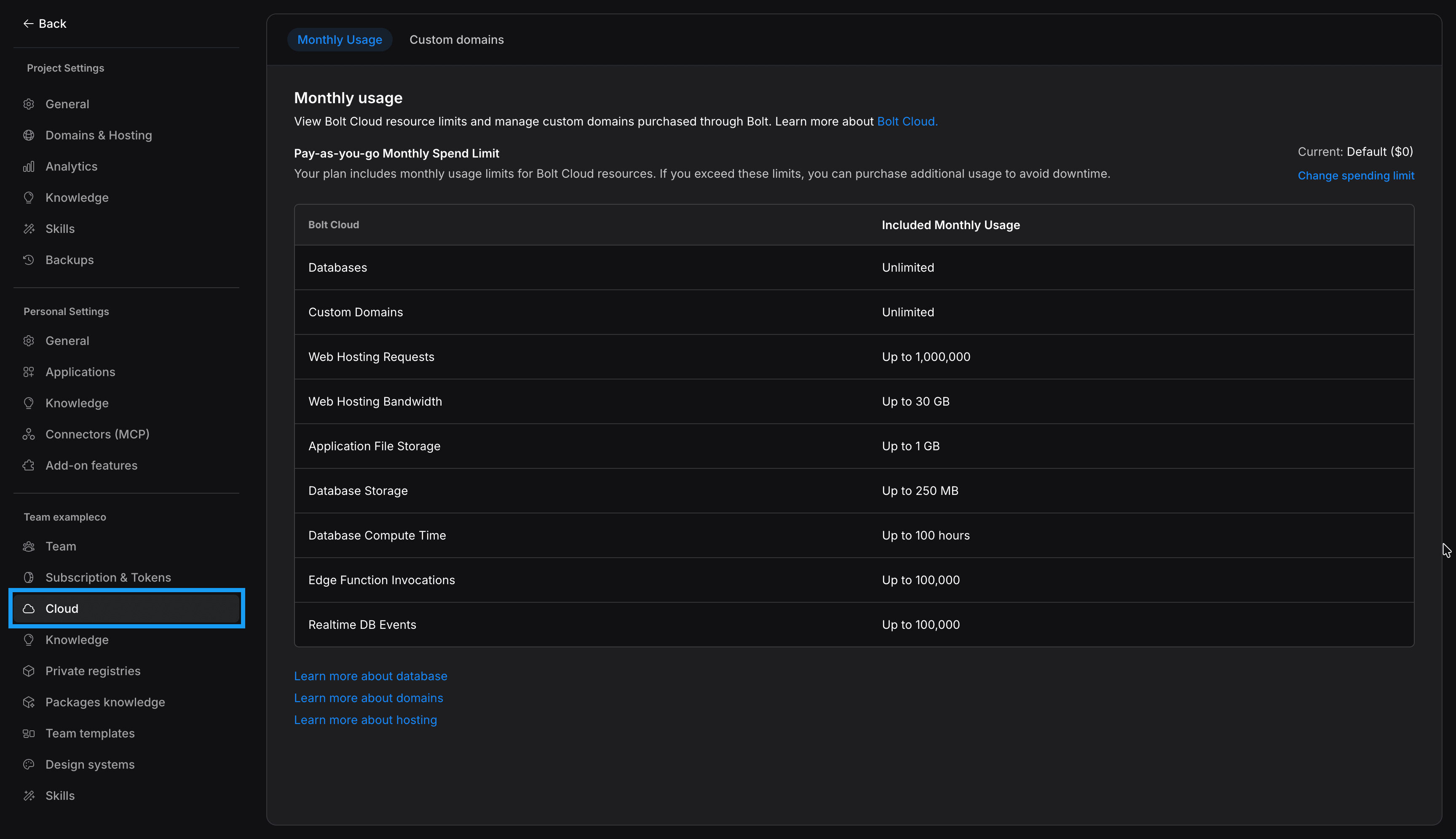
- Click your profile icon in the top left of your screen, then click Settings.
- Click Cloud.
- Review the database-related rows in the table.