

- Invite collaborators and manage their access
- Find and access shared projects from the projects dashboard
- Work together in real time using multiplayer mode
- Get feedback via comments on your project’s preview
- Share integrations like databases and GitHub
Invite collaborators to your project or site
You can invite collaborators using the Share or Publish button in the upper-right corner of your Bolt project. Which button you use depends on whether you’re sharing your project or your published site, because these are two different things in Bolt.- Project: The workspace where you build with Bolt. This is where your files, code, and development environment live. When you chat with Bolt, it automatically updates your project and displays the most recent version in the preview window.
- Site: The hosted version of your project that people can visit on the web. Your project becomes a site when you publish it to a live web address. However, publishing doesn’t necessarily mean your site is fully public. You can publish your site as private to restrict access only to collaborators you invite. After publishing, updates you make in your project don’t automatically appear on your site. You have to update your site from the Publish menu any time you want to make changes live.
Use the projects dashboard
The projects dashboard on the Bolt homepage gives you a quick view of projects you created and projects that were shared with you, all in one place. From the dashboard, you can favorite projects for easy access, and rename or transfer them without opening them first.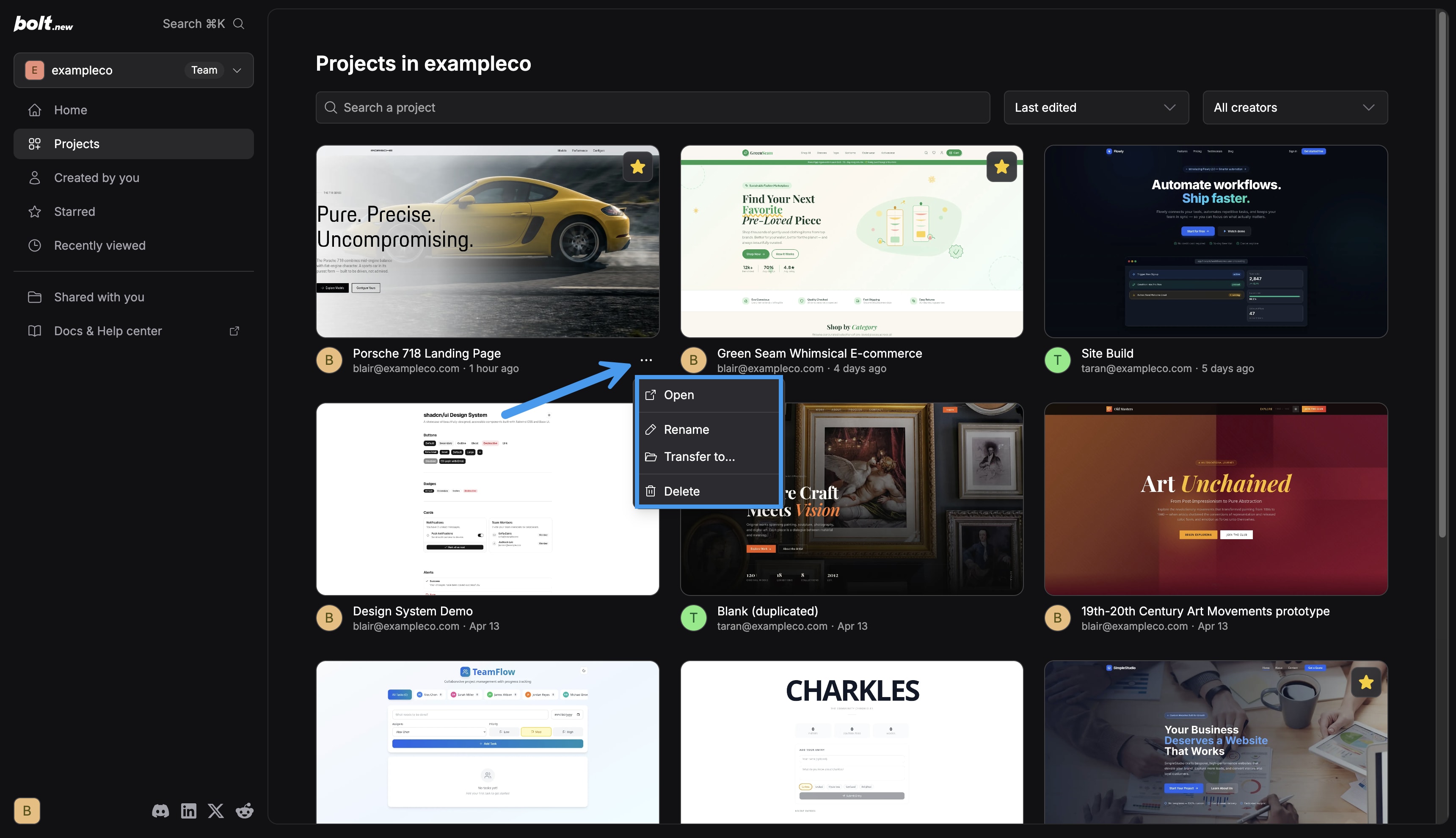
Project thumbnail images generate when you prompt Bolt. If you don’t see a thumbnail for a project, it will appear the next time you prompt Bolt in that project.
Work together in real time
When your project visibility is set to public, collaborators can work together in multiplayer mode. This lets you prompt and edit in the same project at the same time. Every project has a single shared chat thread. To prevent conflicting edits, Bolt processes one prompt at a time. If you or a collaborator sends a prompt while Bolt is still working on another one, it’s added to a queue. When collaborators prompt in a project, Bolt uses tokens from the prompter’s account rather than from the project owner’s.Give and get feedback with comments
Comments let you leave notes directly on elements in your project’s preview. Anyone with access to the project can add comments and reply in threads, so feedback stays with the part of the project it’s about. Comments work in the project preview inside Bolt, not on a published site. Editors and co-owners can also send comments to Bolt, and Bolt makes the changes the comments describe. You can send comments that your collaborators wrote or comments that you wrote yourself. Sending comments uses tokens from your account, the same as any other prompt. To learn more, see Add comments.Share integrations
Shared projects give collaborators access to the project’s data, but control over certain integrations stays with the project owner. If your project has a database, collaborators can view the same data and make changes to the structure. Any collaborator can bring designs into Bolt using Figma or Google Stitch. If you’re on a paid team plan, your team members can add and use design systems. The GitHub integration works differently. Only the project owner can connect and manage it, so if you’re a collaborator, the GitHub button isn’t available to you. When you make changes to the project, Bolt doesn’t automatically push them to the repository. Instead, your changes sync to GitHub the next time the project owner opens the project. This ensures changes aren’t pushed to the repository before the owner has a chance to see them. If the project owner isn’t online while you’re working in the project, you may see this message:This project is linked to a private GitHub repo owned by the creator. Your changes won't sync to GitHub until the creator returns to the project.
Similarly, only the project owner can connect MCP servers and prompt Bolt to use those connectors.