

Adding a design system is available on paid Team plans. Any member of a paid team can add a design system, and each team can add or sync a combined total of 10 design systems per week.If your team is on a free plan, a team admin can upgrade to a paid plan. If you’re on a personal plan, upgrade to a Team plan to get started.
Before you begin
Adding a design system typically takes 45 to 60 minutes depending on the size of your sources, so plan to allow enough time before you need to start building. If you’re adding an NPM package from a private registry, make sure to have your registry URL, auth token, and scopes ready.Add a design system
Open the design system setup
- Make sure you’re logged in to your Team account.
- On the Bolt homepage, in the design system section, click Import your design system.
- In the Let’s set up your team’s design system dialog, click Set up myself.
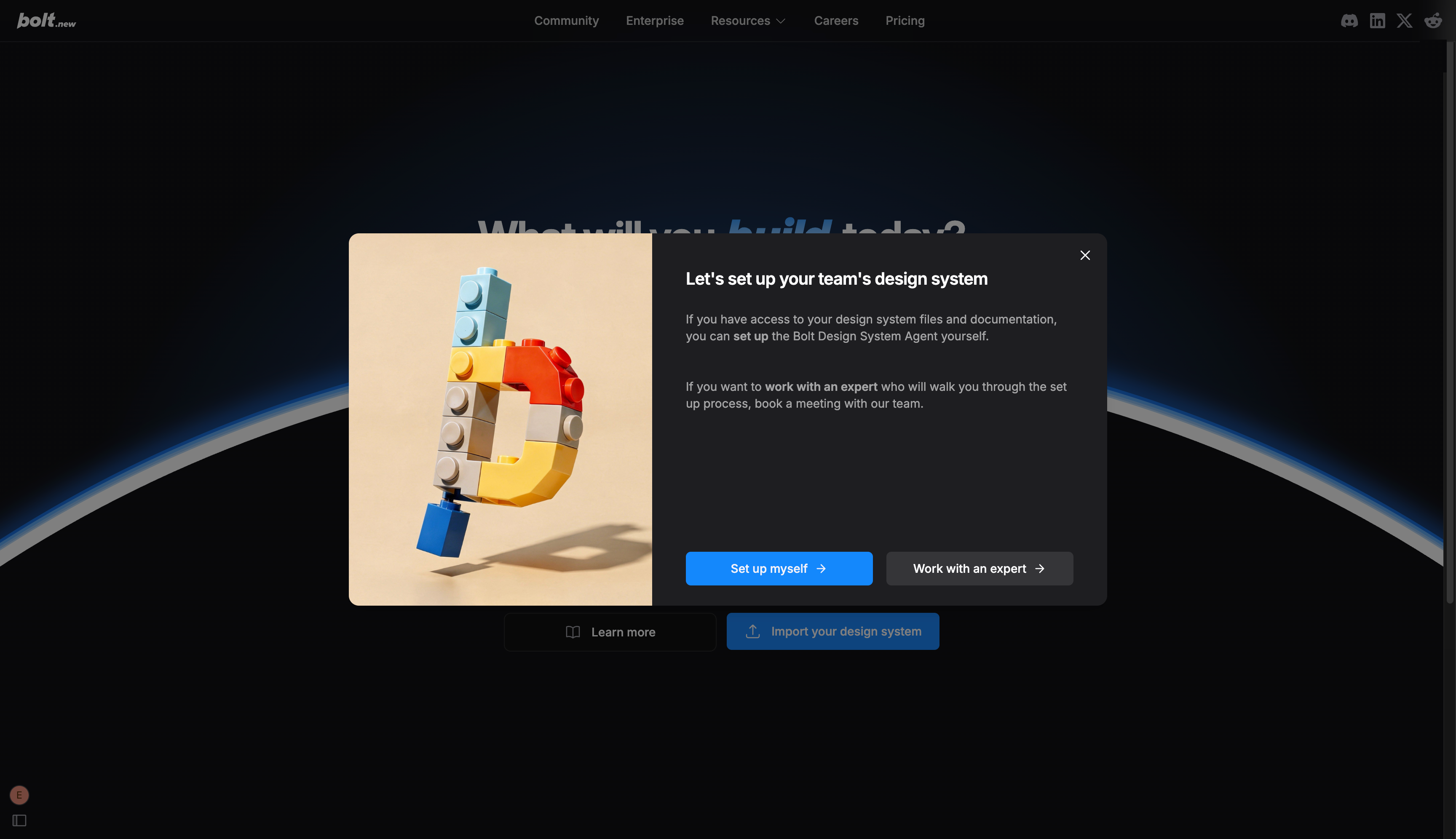
If you’d prefer guided help adding your design system, select Work with an expert to connect with a Bolt team member.
Add your design sources
The more documentation you add, the more precisely Bolt can apply your design system standards. You can add as many sources as needed, in any combination of source types.Files
Upload up to 10 PDFs, images, or other local files that document your design system, such as brand guidelines or component specs. To upload an entire directory, drop it as a.zip file.
Websites
Enter the URL of any publicly accessible documentation site, like a hosted design system site or style guide.GitHub
Enter the URL of a public GitHub repository that contains your design system code or documentation.Storybook
Enter the URL of your published Storybook instance.NPM
Add your packages and, if you’re using a private registry, your registry details.Any private registries your team has already added will appear here automatically. You don’t need to add them again. If you add a new registry, it’s saved to your organization for future use.
-
Public registry
For each package, in the Packages section, enter a package name or
npmjs.comURL. For example,@shadcn/uior@radix-ui/react-dialog. You can also drop a.tgzpackage archive or click Choose .tgz file to upload one. -
Private registry
To connect an NPM registry that’s behind a firewall, book a setup call with a Bolt expert or manually upload your design system resources as files instead.
- In the Registries section, click Add a private registry, then enter your registry URL and auth token.
- Optionally, enter scopes to define Bolt’s access to your package files.
- Add your packages in the Packages section. Use this option if your packages require authentication, including public registries with private scopes.
Add agent instructions
In the left pane, click Agent Instructions, then enter any additional information that can help Bolt better understand your sources.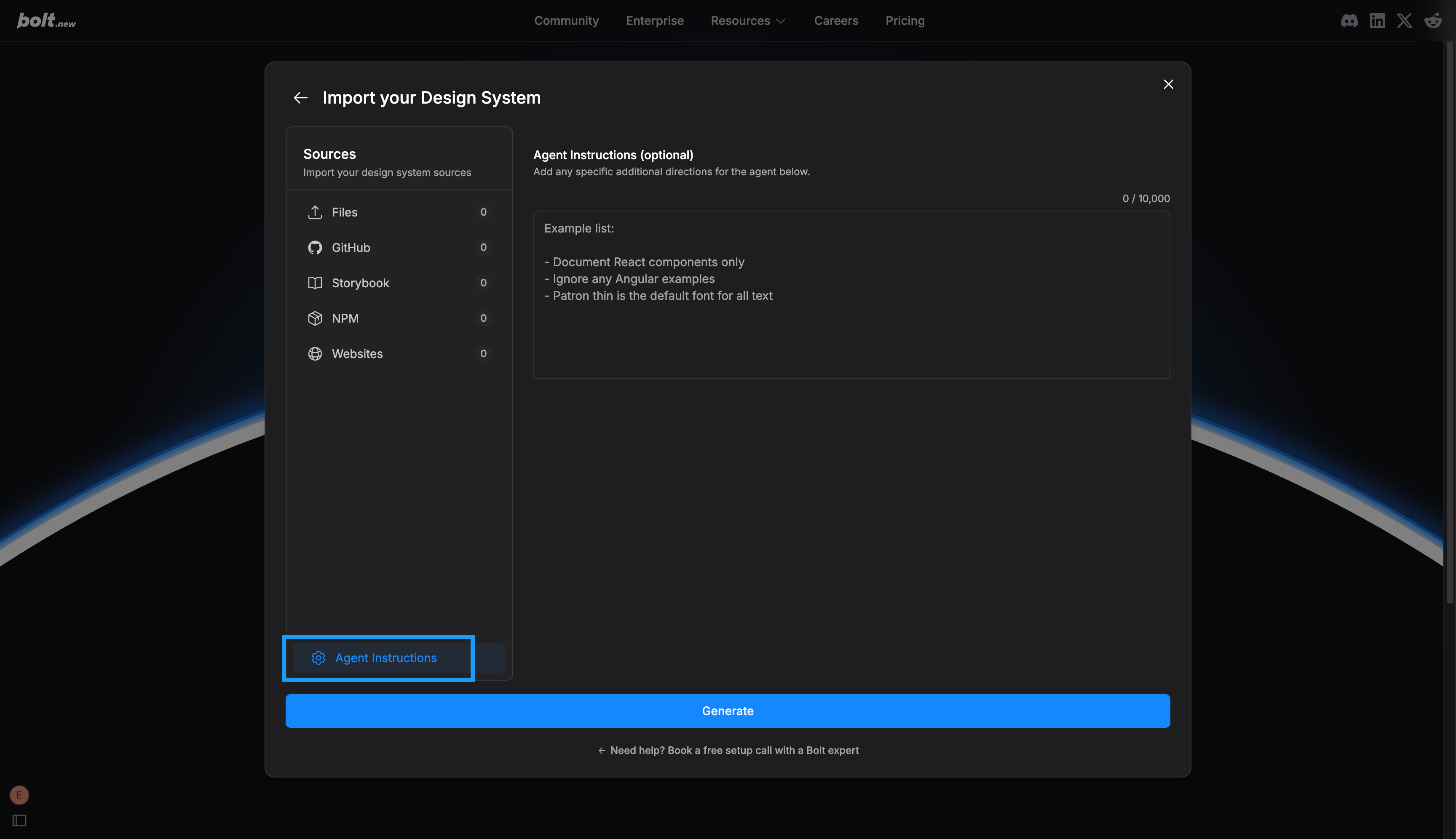
- “Exclude deprecated components from Bolt.”
- “Use only the [theme name] theme referenced in the documentation.”
- “Use only React syntax; ignore Angular examples.”