

How Bolt handles context
Bolt agents support large context windows. However, to keep performance smooth, Bolt limits the active history to recent messages. This helps Bolt run more efficiently and use fewer tokens. If an earlier detail becomes important again, restate it to bring it back into context.Use project knowledge for ongoing context
Context is Bolt’s working memory, and its purpose is to keep track of recent messages. The context window has a limit, so Bolt can forget older messages, and context resets when you clear it. Knowledge, on the other hand, is persistent. Bolt can always access it, even in long conversations or after you’ve cleared the context. Use project knowledge for information that always applies to your project, like its goals and core features. Because this information lives outside the active conversation, you don’t have to restate it in every prompt, and it isn’t cleared when you reset context.Use an agents.md file
Bolt supports using anagents.md file in your project. After you add an agents.md file, Bolt finds and uses it automatically.
To upload a file:
- Open your project.
- In the chatbox, click the plus icon.
- Click Attach file, then choose your file.
agents.md file on its own or alongside project knowledge. Project knowledge lets you enter text, so you can define your project’s goals, core features, and design principles. The agents.md file is a Markdown file, which gives you more flexibility to include links or organize information across multiple files.
The
agents.md file is the entry point for agent instructions. It can reference other files, but the main instructions need to be in agents.md itself. The file name is required. Agents look for instructions starting from agents.md, then follow any links or references you include from there.Use shorter prompts as your project grows
A long, detailed prompt works well for starting a new project because it helps Bolt understand exactly what you want to build, and there’s no other information Bolt has to keep in context. When your project is already large, sending a very long prompt adds to a context window that’s already close to full, which can affect how well Bolt handles the request. As your project grows, break large requests into smaller, focused prompts instead. To learn more, see Prompt effectively.Clear context
Clearing the context resets Bolt’s understanding of your project. With less information in the context window, your requests use fewer tokens. After you clear context, Bolt still has access to your codebase and files, but it evaluates them as if seeing them for the first time. It no longer remembers your recent chat history or how your codebase has changed over time. Because of this, we recommend clearing context when your recent history becomes less important, like when you finish work on a feature or workflow in your project. If your project is large, you can clear context proactively to keep it below the limit, rather than waiting until you notice slower responses.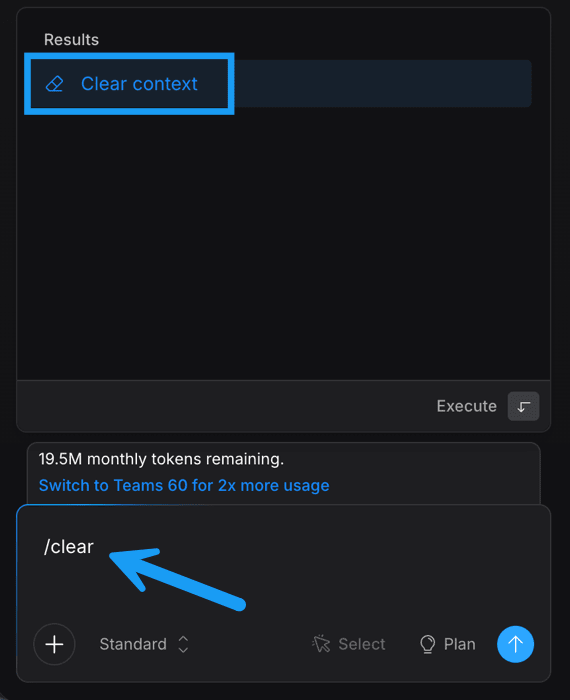
- In the chatbox, enter
/clear, then click Clear context in the menu that appears.
Reduce the size of your project
As your project grows, Bolt has to process more source material to understand your code and respond to your prompts. Reducing how much information Bolt needs to read helps keep your context manageable. There are a couple of ways to reduce your project size:- Clean up unused files.
- Break up large files into smaller ones (also called refactoring).
Before you start
Before you clean up or refactor your project, download your project as a backup. By default, Bolt keeps a version history of your project. If a cleanup causes unexpected changes, you can restore a version saved before the cleanup ran. Downloading your files is still useful if you want to make specific updates after a cleanup, like adding back selected files instead of restoring an entire earlier version.Clean up unused files
You can ask Bolt to find and remove unused files from your project. If you’re comfortable using the terminal, you can also run a cleanup command yourself in Code view, which doesn’t use tokens.Ask Bolt to clean up your files
Anyone can clean up files by prompting Bolt, with no Code view required. Try a prompt like:Remove any unused files and components from this project.
As Bolt builds, it may add Markdown (.md) files for record-keeping. After storing these files, it reads them into your context on every prompt. To get rid of Markdown files you no longer need, try a prompt like:
Look at the number of .md files in this project and keep only the ones that have necessary project context.
Run Knip in the terminal (optional)
Knip is a tool that finds and removes unused files. Running it in the terminal doesn’t use any tokens, so it’s a good option if you’re comfortable working from the command line.- Open the terminal in Code view, then click the Terminal tab.
-
Run the following command:
npx knip --production --fix --allow-remove-files - Check the output in the terminal to confirm the command ran successfully.
Break up large files
Large files are a common reason the context window gets too full. When Bolt has to process files with thousands of lines of code, the context window fills up quickly. To break up large files:-
Ask Bolt for a list of any files in your project longer than about 700 lines. For example, use a prompt like this:
Scan my entire project and list every file over 700 lines. For each one, show the file name, its path, and its line count, sorted by longest first. Don't change anything yet. I just want the list. - Copy the list from the chatbox and save it somewhere you can refer back to, like a text file.
-
Ask Bolt to refactor each file. For example, use a prompt like this:
Please refactor [filename] by splitting it into multiple files. Keep the original file to act as a router so the app continues to function after the refactor. Add basic comments to these files to understand what each file and its parts are for.Repeat this prompt for each file, and test your project after each refactor to make sure it works as expected. Testing one file at a time makes it easier to spot any unintended changes.