

- Built-in prompts Bolt provides for common development tasks like SEO, accessibility, dark mode implementation, and error handling
- Custom prompts that you create and save yourself
Browse all prompts
Prompts are organized into categories like SEO, Accessibility, Usability, and Workflow.- In the bottom-left corner of the chatbox, click the plus icon, then click Open Prompt Library.
- Browse through the available prompts. Hover over a prompt name to see the full prompt text.
- Click a prompt to insert it into the chatbox. You can use it as is or edit it before sending.
Find a prompt by name
If you know the name of the prompt you want, type/ followed by the prompt name in the chatbox. Bolt filters prompts as you type.
Slash commands must start with a lowercase letter. If the prompt name starts with an uppercase letter, type it in lowercase to get results. For example, to find the Dark Mode Implementation prompt, type /dark.
Click Use prompt or press Enter to insert it into the chatbox.
Create a prompt
- In the chatbox, type
/create prompt. - In the results, click Create prompt.
- Fill in the following fields:
- Category: Select an existing category, or click Create new category.
- Icon: Select an icon. If you select an existing category, its icon prepopulates.
- Name: Enter a short name to display in the Prompt Library.
- Prompt: Write the prompt you want to save.
- Click Create prompt.
Manage your prompts
You can favorite any prompt, including built-in prompts. Favorited prompts appear at the top of the list. To favorite a prompt, click the star icon next to it. Click the star icon again to remove it from favorites. You can edit and delete custom prompts, but not built-in prompts.- In the bottom-left corner of the chatbox, click the plus icon, then click Open Prompt Library.
- Find the prompt you want to manage, then click it.
-
Click the three-dot menu.
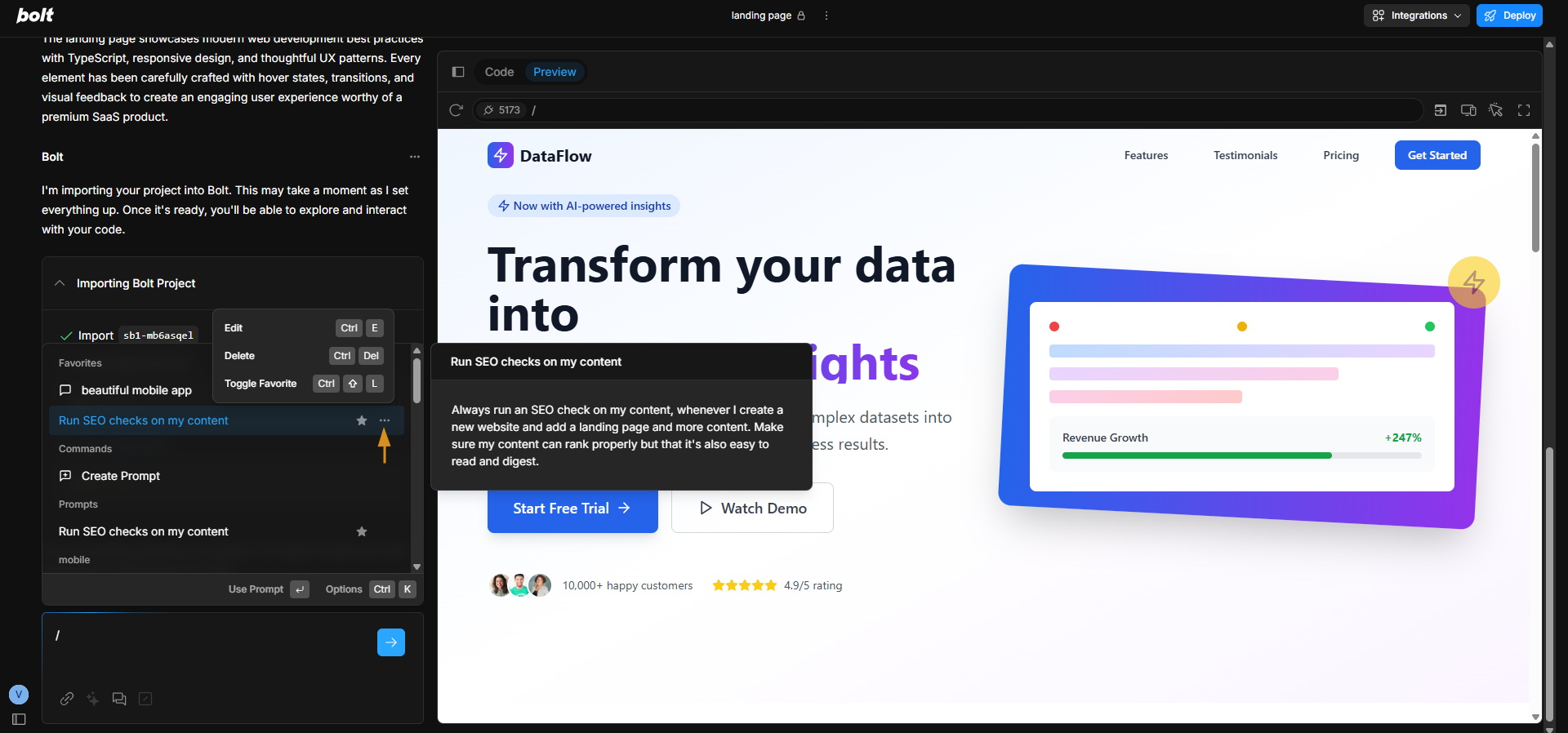
-
Choose an action:
- Toggle favorite: Adds the prompt to favorites or removes it.
- Edit (custom prompts only): Opens the prompt so you can make changes.
- Delete (custom prompts only): Deletes the prompt from the library.