

The prompting techniques video below is a great place to get started!
Plan your app, and your first prompt
When you start with a clear, well-structured prompt, you set yourself up for success. Think of your prompt as a blueprint. The clearer your blueprint, the smoother the build process will be and the less likely you’ll need to rework things down the line. Not sure where to begin? Our guide on Planning your app walks you through practical ways to organize your ideas and start with a powerful first prompt.Automatically improve your prompt
Bolt has a built-in feature to help you create better prompts:- In the chatbox, type your prompt.
- In the bottom-left corner of the chatbox, click the plus icon, then click Enhance prompt.
- In the Help us enhance your prompt dialog, answer each question to give Bolt more information about what you’re building.
- Bolt generates a recommended prompt, which you can edit.
Comparing original and enhanced prompt results
The image below compares two websites created with the same prompt. The version on the right was built with a simple prompt, while the version on the left was enhanced to produce a more engaging homepage and additional pages.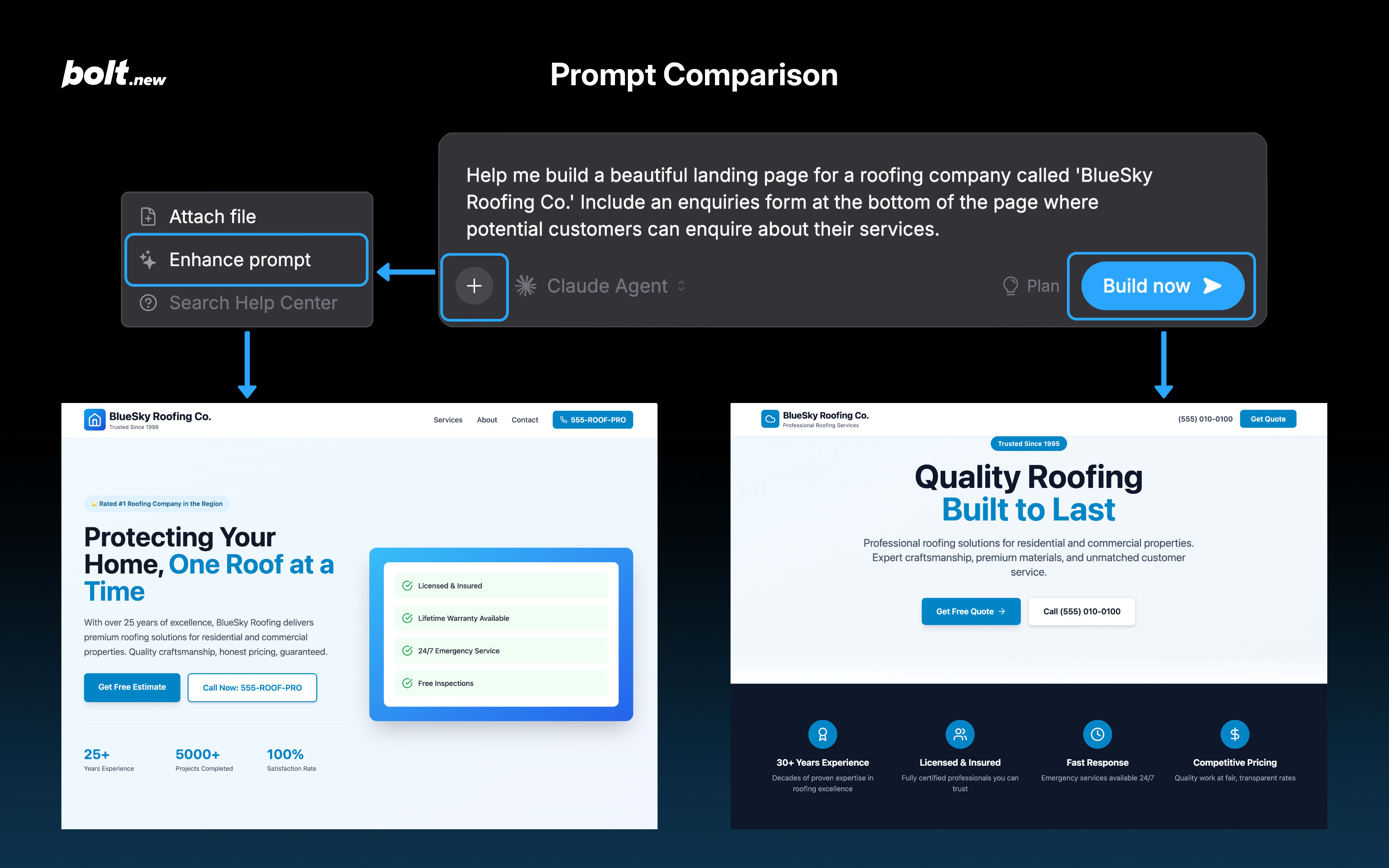
Prompting quick tips
- Start with the application architecture, including your choice of tools, frameworks, and so on.
- Clear context regularly, so long as you’re sure Bolt doesn’t need to remember anything short-term.
- Add individual components and features, one by one.
- Add in details in each component with small, specific prompts. Avoid overwhelming the LLM with too many instructions and requirements at once.
- Be explicit about what should and shouldn’t change. You can tell Bolt to change or not change specific files. When possible, refer to specific elements, classes, or functions to guide Bolt to the exact place where you want the changes made.
- Don’t expect the LLM to have common sense.
Guide Bolt’s focus
You’ll get more accurate results if you’re explicit about what Bolt should and shouldn’t change.Limit Bolt to specific files
- Open a Bolt project.
- Click the code icon (<>) in the top center of your screen to switch to Code view.
- Right-click the files you want to focus on.
- Click Target file.
Exclude specific files or directories
- Open a Bolt project.
- Click the code icon (<>) in the top center of your screen to switch to Code view.
- Right-click the files or directories you want to exclude.
- Click Lock file (single file) or Lock all (directory).
Focus on a specific code section
- Open a Bolt project.
- Click the code icon (<>) in the top center of your screen to switch to Code view.
- Highlight the code you want to discuss or change.
- Click the Ask Bolt button (if the button doesn’t appear immediately, try right-clicking). Bolt links the selection in the prompt box.
- Enter your question or request.
Troubleshooting prompting
If Bolt doesn’t respond exactly as you expect, try these steps to work through common issues.Bolt didn’t complete everything you asked for
Break your request into smaller parts. Ask Bolt to make one change at a time.- Make one change.
- Check that the change works.
- Move on to the next update or feature.
Bolt forgets what you told it earlier in the same chat
Bolt’s ability to remember your chat history isn’t infinite. A way to preserve information while keeping the chat history window small is to ask Bolt to summarize your conversations so far, then reset your chat history by duplicating your project. See Clear context for instructions.Customize knowledge for your account, project, or team
Knowledge is a set of persistent instructions Bolt uses for context when it responds in a project. You can use it to guide Bolt’s tone, focus, or behavior every time it responds. You can set knowledge separately for your account, project, or team:- Account knowledge applies to all your projects. Set it in your Account settings.
- Project knowledge is specific to each project. Set it in your Project settings.
- Team knowledge applies to all projects created within your team. Set it in your team’s workspace settings.